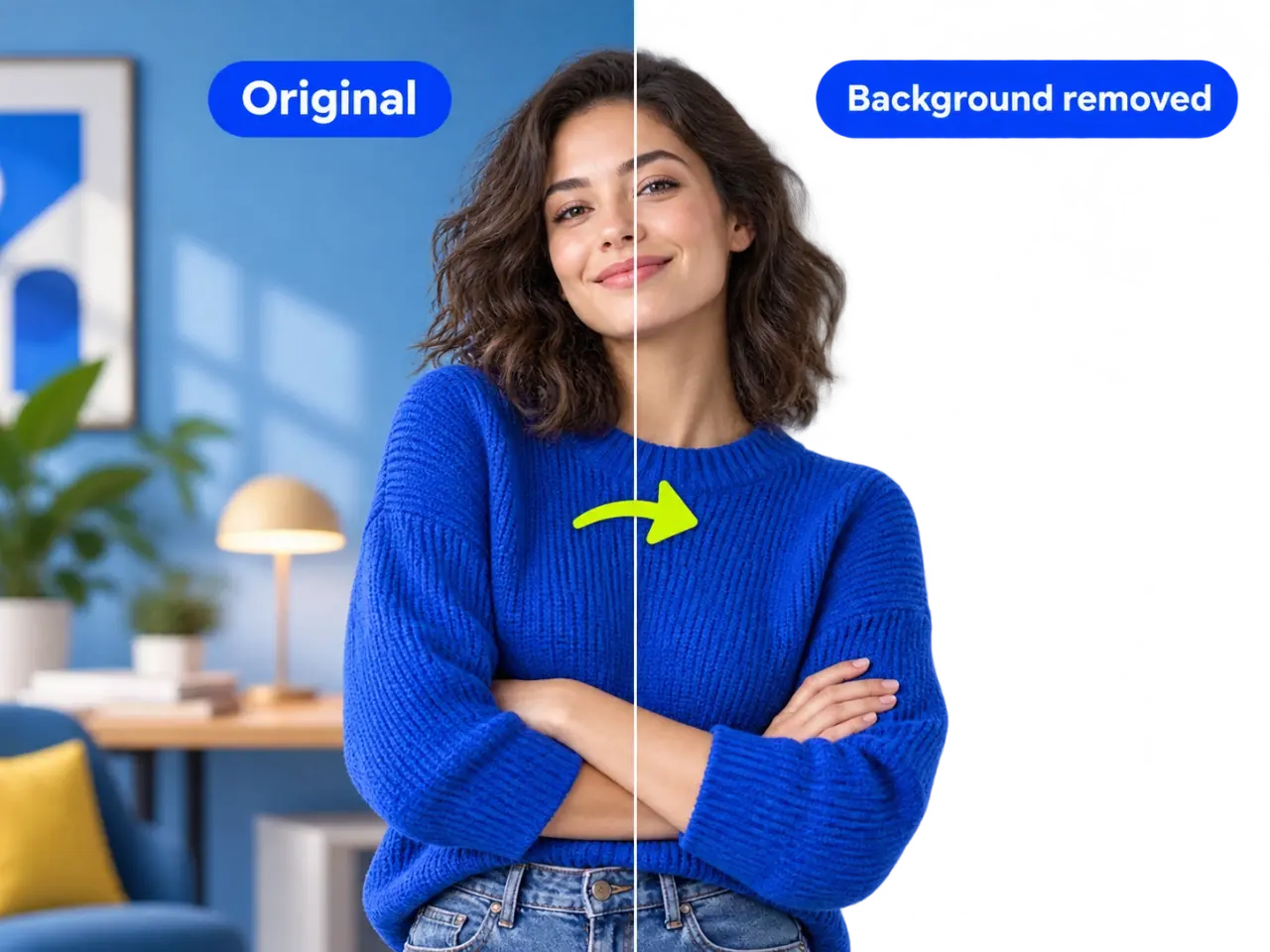
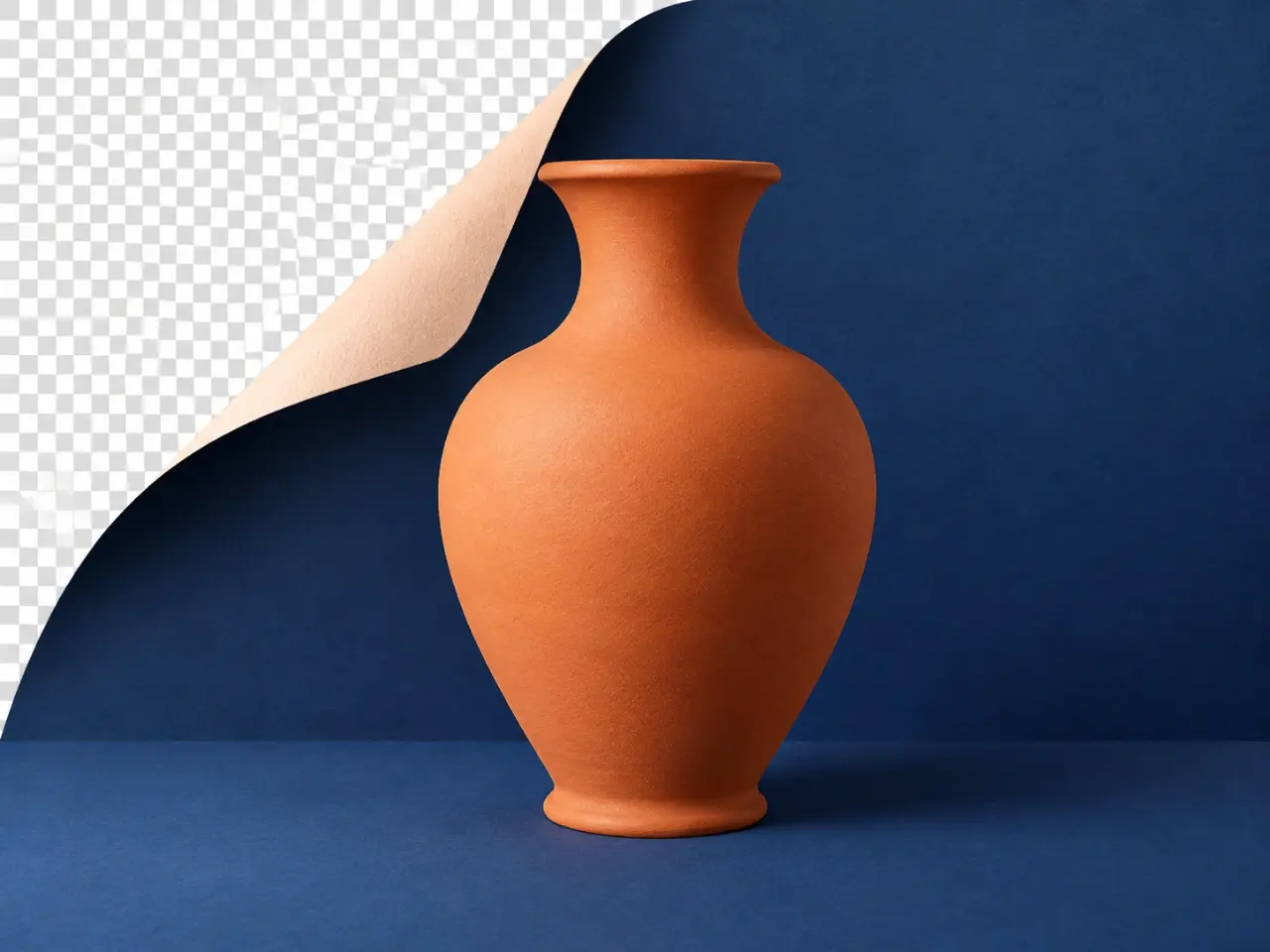
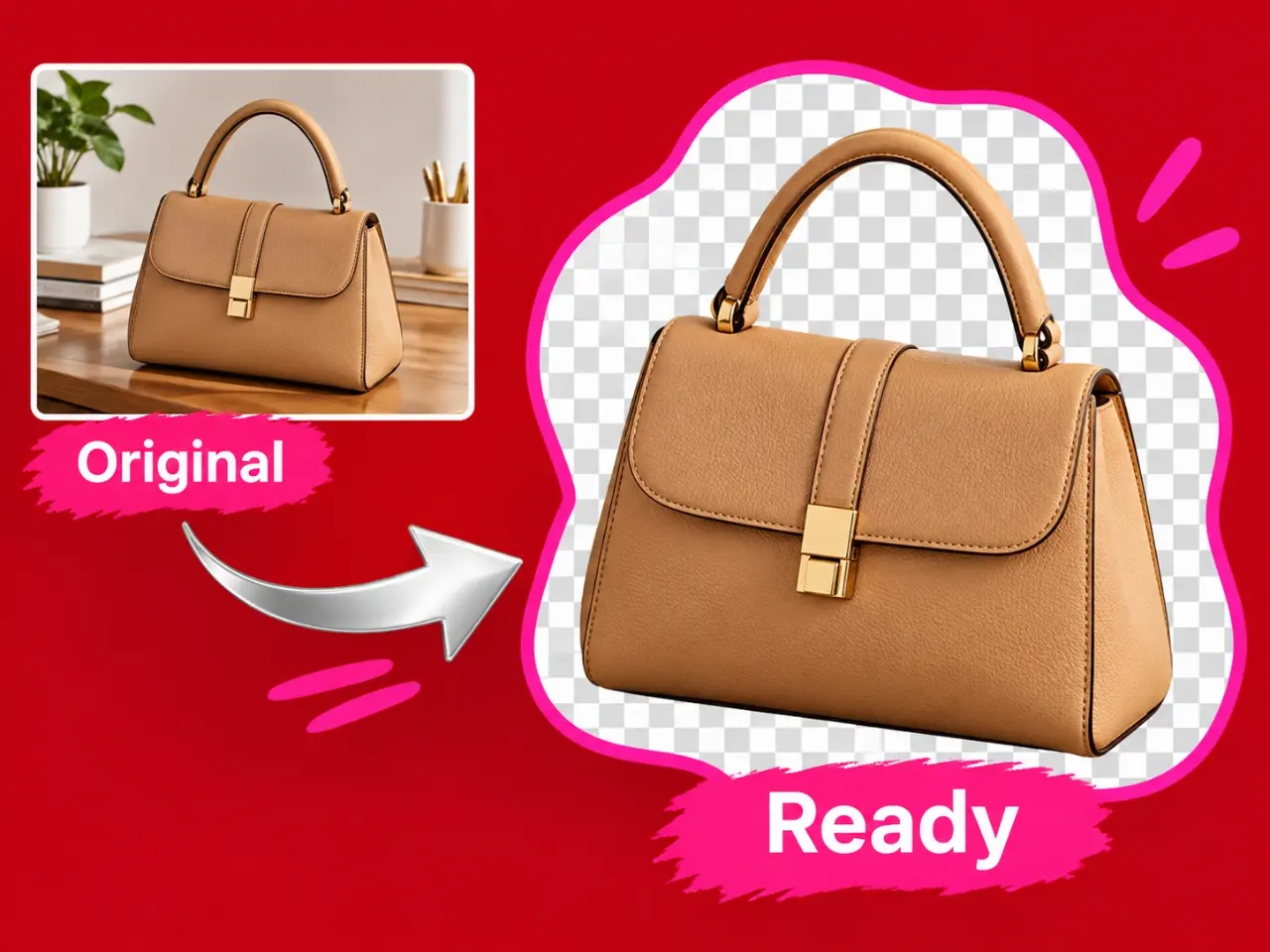
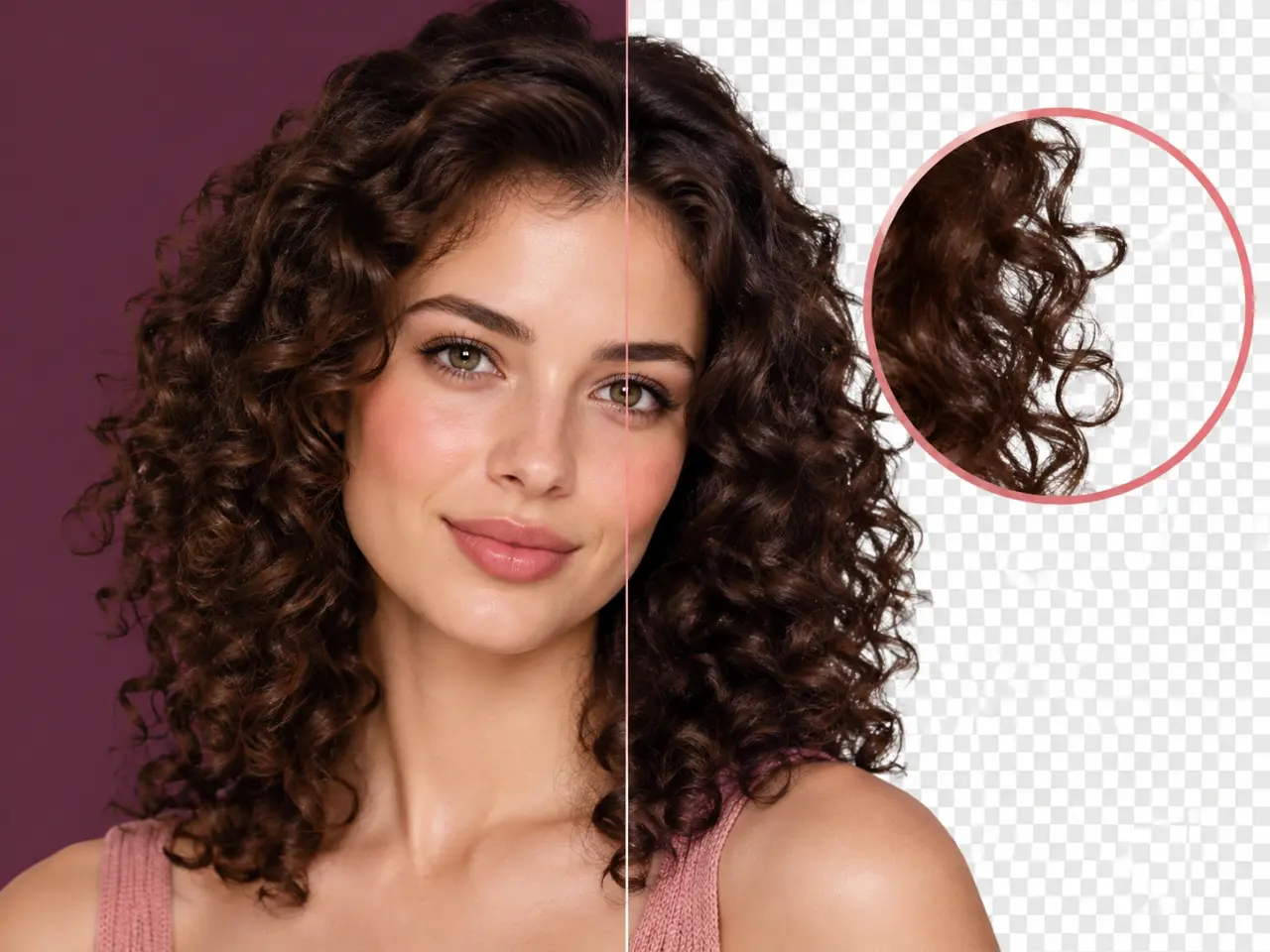
An AI background remover separates the main subject in an image from the area behind it. Upload one photo, create a new version, and review the cutout before you download it. This is helpful when a product, portrait, object, or simple graphic needs a cleaner starting point for a new design. A background remover can save time on straightforward cutouts, but fine edges such as loose hair, transparent objects, shadows, or similar-colored subjects may still need careful review. Keep the original image and inspect the result at the size where you plan to use it.
Step by Step
How to Remove a Background with AI
01
Upload One Image
Choose a clear image with the subject you want to keep visible.
02
Start Background Removal
Select the AI background remover and create a clean cutout from your upload.
03
Review the Edges
Check the subject outline, fine details, and areas where the subject meets the background.
04
Download Your Result
Keep the version that works for your next design, listing, post, or presentation.
Core Features
What Are the Core Features of AI Background Remover?
No Design Skills Needed
Upload an image and let the AI background remover handle the first cutout. You do not need Photoshop skills, manual selection tools, or a long editing workflow to remove a background from a straightforward image. The process is designed to stay simple: choose one image, create the result, then review it before you download.
Remove bg AI can produce a cutout in seconds for many images, saving you from tracing a subject edge by hand. Processing time can vary with the image and current demand, but the tool gives you a faster starting point than a manual cutout when you need to prepare an image for your next task.
The AI bg remover aims to keep the foreground subject clear while removing the surrounding area, including fine details such as hair where the source image allows. For the cleanest result, start with a sharp image in which the subject and background have a visible boundary. Always inspect hair, transparent objects, straps, shadows, and similar colors before using the finished cutout.
Prepare a focused product image for a shop page or marketplace listing, then review the result to confirm that important details remain clear.
Create Social Posts
Use a background-free subject in a campaign graphic, announcement, or profile post where the message needs room to stand out.
Update Team Profiles
Make staff or speaker photos more consistent when the original images were taken in different rooms or at different events.
Design Presentations
Place a person, product, or object next to slide copy without asking viewers to look past a distracting original setting.
Prepare Marketplace Images
Remove bg AI can help make an item easier to assess when the original photo includes clutter, unrelated objects, or a busy surface.
Make Simple Collages
Collect clean subject images before arranging a mood board, event invitation, product comparison, or other visual composition.
Advantages
Why Use imglab AI Background Remover?
A Focused Background Removal Tool
Open the tool when the job is simply to isolate the subject from one uploaded image, without setting up a complicated editing workspace.
Free Credits to Start
Create an account to claim free credits and try AI background removal before you decide how to use the result in your project.
One Image at a Time
A single-image workflow keeps the task easy to follow: upload, create, inspect, and choose whether the cutout is ready to keep.
A Result You Can Review
Your completed image appears with your recent creations, so you can compare it with the original and download the version you prefer.
Tips
Tips for Better Background Removal Results
Start with an image where the subject is sharp and clearly separated from its surroundings. A plain or contrasting background usually makes the outline easier to inspect, especially around hair, straps, transparent materials, and shadows. Avoid relying on a cutout without a quick review: zoom in on the edges, check small product details, and test the image against the background where you plan to use it. If the result is not suitable, keep the original and try a clearer source image.
User Feedback
What Do Users Say About AI Background Remover?
“I needed a cleaner image for a product listing, and the background remover gave me a useful version to review before I published it.”
“The original event photo was great, but the room behind our speaker was distracting. The cutout made the slide much easier to read.”
“I use the AI bg remover when I need one subject from a photo for a post. Checking the edges before download is straightforward.”
“It is a practical first step when several product photos were taken on different surfaces and need a more consistent look.”
“I used the background remover to make a simple collage for a class project. Starting with clean subject images saved time.”
“For profile photos, it helps me focus attention on the person before I add the image to a team page or presentation.”
AI Background Remover FAQ
Is this a free AI background remover?
You can create an account and claim free credits to use the tool. Background removal uses credits, and the current requirement is shown in the workspace before you create a result. Review the available balance and creation details there before you start.
Do I need to upload the images to the server?
Yes, this AI background remover requires uploading your images to the cloud for processing. Your uploaded images are typically deleted after 24 hours.
How do I remove a background from a picture?
Upload one image, start the background-removal tool, and wait for the result to appear in your recent creations. Review the cutout carefully, then download the version you want to keep. A clear source image gives you the best starting point for a useful result.
What makes a good image for background removal?
Choose an image where the main subject is in focus and visibly different from the area behind it. Strong separation can make the subject boundary easier to inspect. Small details, transparent materials, shadows, and similar colors can require extra care, so always review the completed image.
Can I use the cutout for a product image?
Yes, a background-free version can be a useful starting point for a listing, catalog tile, or promotion. Before publishing, check that the product shape, label, texture, and edges look accurate at the size customers will see. Keep your original image as a reference.
Why do some edges need review?
Background removal can be more challenging when the subject blends into the surroundings or includes detailed edges such as hair, glass, straps, or shadows. Inspect the result against its final background, not only on its own, to see whether the subject still looks natural in context.
Can I download the image after removing its background?
After the result is complete, open it in your recent creations and download the version you want. Check the image first for visual quality and suitability for your intended use, especially when it includes product details, faces, logos, or other important elements.