Prepare Product Photos
Separate a product from a distracting tabletop or room before adding it to a listing or catalog layout. Save a transparent cutout for your design editor, or choose JPG for a white background.
Remove image backgrounds for free, as often as you need. Your photos stay on your device. No signup, credits, or watermarks—just choose a photo and download your cutout.
Explore more tools for your next task.
Instantly isolate subjects and remove busy backgrounds with one-click precision.
Resize images to exact pixel dimensions, a percentage, or common social media presets.
Reduce images to 50KB, 100KB, 200KB, 500KB, or a custom target size.
Split images into equal rows and columns for social grids, carousels, puzzles, and more.
Reduce MB-sized images to a KB target with compression and optional image resizing.
Crop photos with custom aspect ratios, freeform selection, and social media templates.
The imglab Free Background Remover separates a subject from its surroundings so you can reuse it in a new design. This online background remover works locally in your browser: the image you select stays on your device throughout processing. Use it for product photos, portraits, pets, and everyday objects without signing up, buying credits, or paying for downloads. There is no daily usage quota, so you can work through your photos one at a time and try again whenever you need. Choose General or Portrait mode, check the cutout, and save it with a transparent background for your next project.
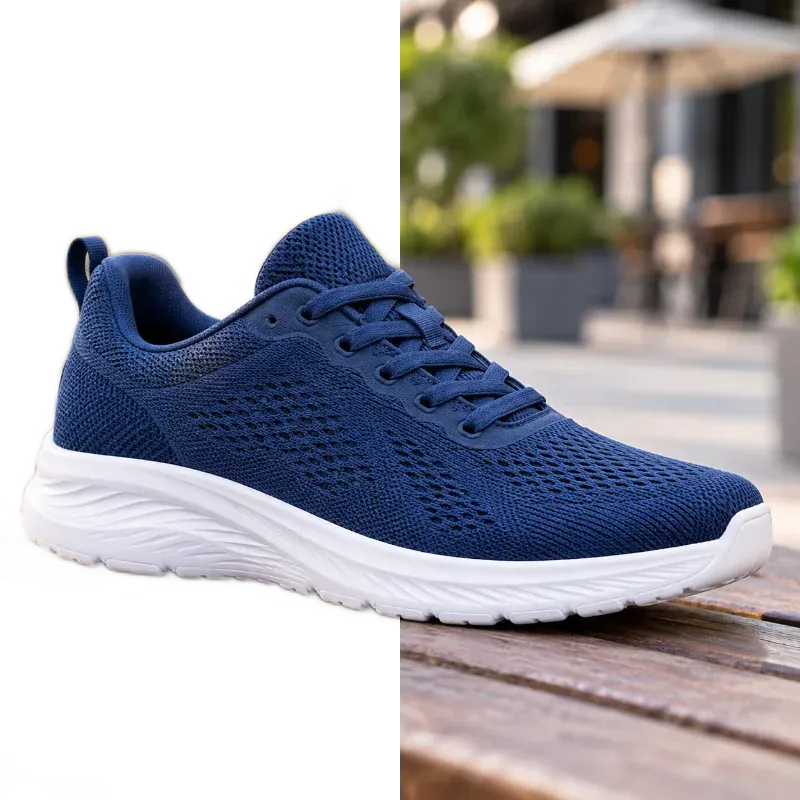
Choose a JPG, PNG, or WebP image from your device, drag it into the tool, or try a sample. Your selected photo opens locally without being uploaded.
Use General for products, objects, and animals, or Portrait for people and hair. Keep PNG selected for a transparent cutout, or choose another available output format.
Click Remove Background and wait for the result. The first run may take longer to prepare. Switch between Original and Result to check the subject and its edges.
Download the finished image without a watermark. Add it to your preferred design editor, or select another photo to continue. Every removal and download is free.
Separate a product from a distracting tabletop or room before adding it to a listing or catalog layout. Save a transparent cutout for your design editor, or choose JPG for a white background.
Use Portrait mode to isolate a person for a profile design, team introduction, or event graphic. Review loose hair and clothing edges before placing the downloaded image against a new background.
Cut a picture out of its background to use the subject in a collage, video thumbnail, or promotional post. A transparent file lets you arrange the subject alongside text and other images in your editor.
Remove the background around a pet, object, or classroom photo for a presentation, invitation, or digital scrapbook. Students, teachers, and hobbyists can prepare multiple images without a subscription or per-image charge.
There are no credits, paid download tiers, or daily removal quotas. Process as many photos as you need, one at a time. Individual images still need to fit the size limits and your device's available memory.
Background removal happens locally in your browser. Your selected image is not sent to an imglab server for processing. You can prepare personal photos or unpublished product images without uploading them to use this tool.
Go straight from choosing an image to downloading the result without creating an account. The background eraser adds no imglab watermark, leaving your cutout ready to use in your own layout.
The output keeps the original image width and height rather than restricting free downloads to a small preview. Choose PNG, WebP, or AVIF for transparency, or JPG when you need a white background.
Start with a sharp photo where the subject stands out from the background. Choose Portrait for people and General for other subjects. Fine hair, fur, glass, motion blur, and similar foreground and background colors can make the outline harder to separate. Check those areas in the result before downloading; automatic removal may leave unwanted edges or remove small details. Try another mode or a clearer source photo if needed. Use PNG when you want to place the subject on a new background, and keep your original file for any later edits.
Yes. Selecting a photo, removing its background, and downloading the result are completely free. You do not need an account, subscription, or credits, and the tool does not add a watermark.
Yes. There is no daily quota or total usage limit. Work on one image at a time and repeat as needed. Unlimited use refers to the number of removals; each image must still meet the supported dimensions and fit your browser's memory.
No. Photos selected from your device are processed locally in your browser. The page downloads the files it needs to run, but your photo is not uploaded for background removal. Download the result before leaving or refreshing the page.
This page provides the free local workflow: no image uploads, account, or credits are needed. The separate AI Background Remover uses imglab's online generation workflow. Choose this local tool when unlimited free use and keeping photos on your device are your priorities.
JPG, PNG, and WebP are practical input choices. Images can be up to 24 megapixels, with neither side exceeding 12,000 pixels. Large images may still exceed the memory available on your device. If processing fails, try a smaller image.
Choose PNG, WebP, or AVIF to keep transparency. PNG is the default and a useful choice for further editing. JPG does not support transparency, so its empty areas use a white background. All four download formats are free.
The tool needs to download and prepare processing files the first time you use a mode. These files can be saved in your browser for reuse, so later runs may start sooner. Initial setup needs an internet connection, and processing time depends on your device and image.
This tool removes the background automatically and does not include a manual erase or restore brush. If the cutout needs adjustments, try the other mode or download it for refinement in an image editor.