Make It Round

Circle Crop Image

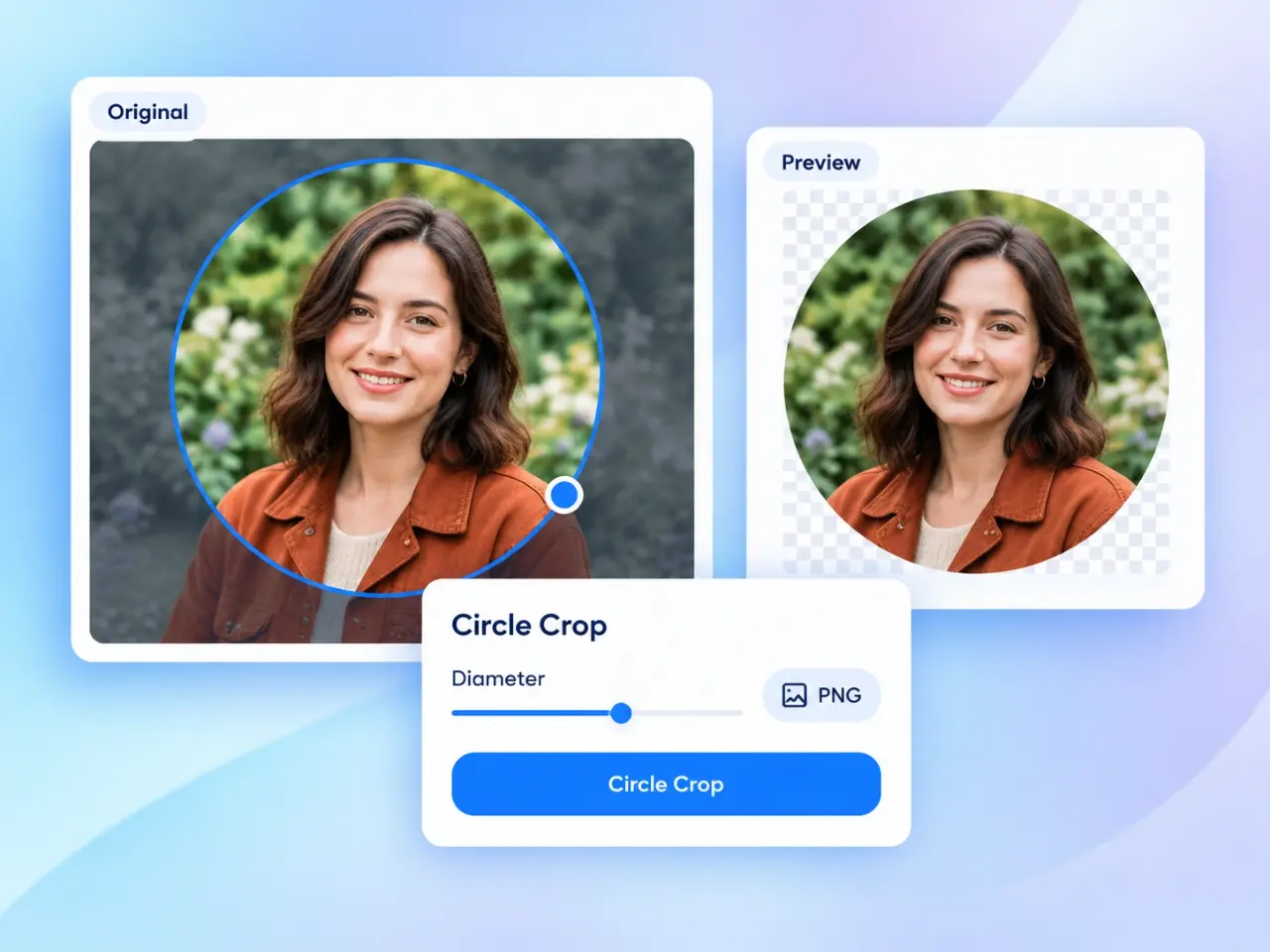
Crop pictures into a circle with a visual selection or exact size and position controls.

LiveCircle Preview
ExactPixel Controls
LocalImage Processing
PNG, JPG, WebP & more

Click to browse or drag & drop an image

Try Sample:

Circle Settings

Circle size
Position

Drag the circle in the preview, resize it with the handle, or enter exact pixel values.

Position the circle, then create your image.
PreviewNo image selected

Your circle crop preview will appear here.

Select an image, then move or resize the circular area.

No circle image created yet.

Overview

What Is the Circle Crop Image Tool?

Circle Crop Image is a simple online tool for turning a rectangular or square picture into a clean circle shape. Move the circular selection over your subject, resize it to include exactly what you want, or enter precise diameter and position values. The circle image cropper shows the selected area before you create the result, helping you prepare profile photos, team portraits, product details, badges, and other round graphics without changing your original file.

Step by Step

How to Circle Crop an Image Online

  1. 01

    Upload Your Image

    Drag and drop a JPG, PNG, or WebP image, browse your device, or choose a sample picture to begin.

  2. 02

    Place the Circle

    Drag the circular area over the face, object, or detail you want to keep. The shaded area will be removed.

  3. 03

    Adjust Size and Position

    Resize the circle with its handle or use the diameter, X, and Y fields when you need exact pixel values.

  4. 04

    Create and Download

    Select PNG, WebP, or JPG, create the circle image, review the result, and download it to your device.

Key Use Cases

Popular Uses for a Circle Image

Profile Photos and Avatars

Create a centered photo circle for social profiles, community accounts, author bios, customer portals, and messaging apps. Fine position controls make it easier to keep a face naturally framed with comfortable spacing around it.

Team and Testimonial Portraits

Give staff headshots, speaker photos, customer quotes, and contributor cards a consistent round appearance. Use the same diameter across several source photos to keep a page or presentation visually balanced.

Products, Badges, and Thumbnails

Crop a round image around a product detail, icon, food photo, or illustration for category buttons, promotional badges, labels, and compact thumbnails that need a clear focal point.

Design Elements with Transparent Corners

Export as PNG or WebP when you want the area outside the circle to remain transparent, making the finished graphic easy to place over colored cards, patterns, or other backgrounds.

Advantages

Why Use the imglab Circle Image Maker?

Interactive Circle Crop

Move and resize the selection directly in the preview. The diameter and position fields stay linked with the visual controls, so you can switch between quick adjustments and precise placement at any time.

Exact Square Output

Every result uses matching width and height based on the selected circle diameter. This makes the downloaded image predictable and convenient for avatars, cards, and reusable design layouts.

Transparent or White Background

PNG and WebP can keep transparent corners around the circle. If you choose JPG, which does not support transparency, the circle image maker automatically fills those corners with white for a dependable result.

Private Browser-Based Editing

Your image is processed locally in your browser and is not uploaded to an imglab server. You can prepare personal portraits and work images while keeping the editing flow on your own device.

Tips

Tips for a Better Round Image Crop

Start with a clear, high-resolution picture and leave a little space between the subject and the circle edge. For a portrait, place the eyes slightly above the center rather than centering the entire head exactly. Use Fit Largest Circle when you want the biggest possible crop, then reposition it if needed. Choose PNG or WebP for transparent corners when the circle will sit on different backgrounds. Choose JPG when a white square background is suitable or when you need broad compatibility and a compact photo file.

Circle Crop Image FAQ

How do I crop a round image from a rectangular photo?

Upload the photo, drag the circular selection over the area you want, and resize it until the subject is framed well. Select an output format, choose Circle Crop Image, review the result, and download it.

Can I choose the exact circle size and position?

Yes. Enter a diameter in pixels and use the X and Y fields to position the circle from the top-left corner of the original image. You can also drag and resize the selection in the preview, and both controls remain synchronized.

Which format should I use for a transparent circle image?

Choose PNG or WebP if the corners outside the circle need to be transparent. These formats are useful when the finished image will appear over different page colors, gradients, or artwork.

What happens when I save the circle crop as JPG?

JPG cannot store transparent pixels, so the area outside the circle is filled with white. The photo remains visible inside the circle shape, while the four outer corners use a solid white background.

Is it safe to use this online circle cropper for personal photos?

Your selected image is processed locally in your browser and is not uploaded to or stored on an imglab server. The downloaded result stays under your control.