Social Media Formatting
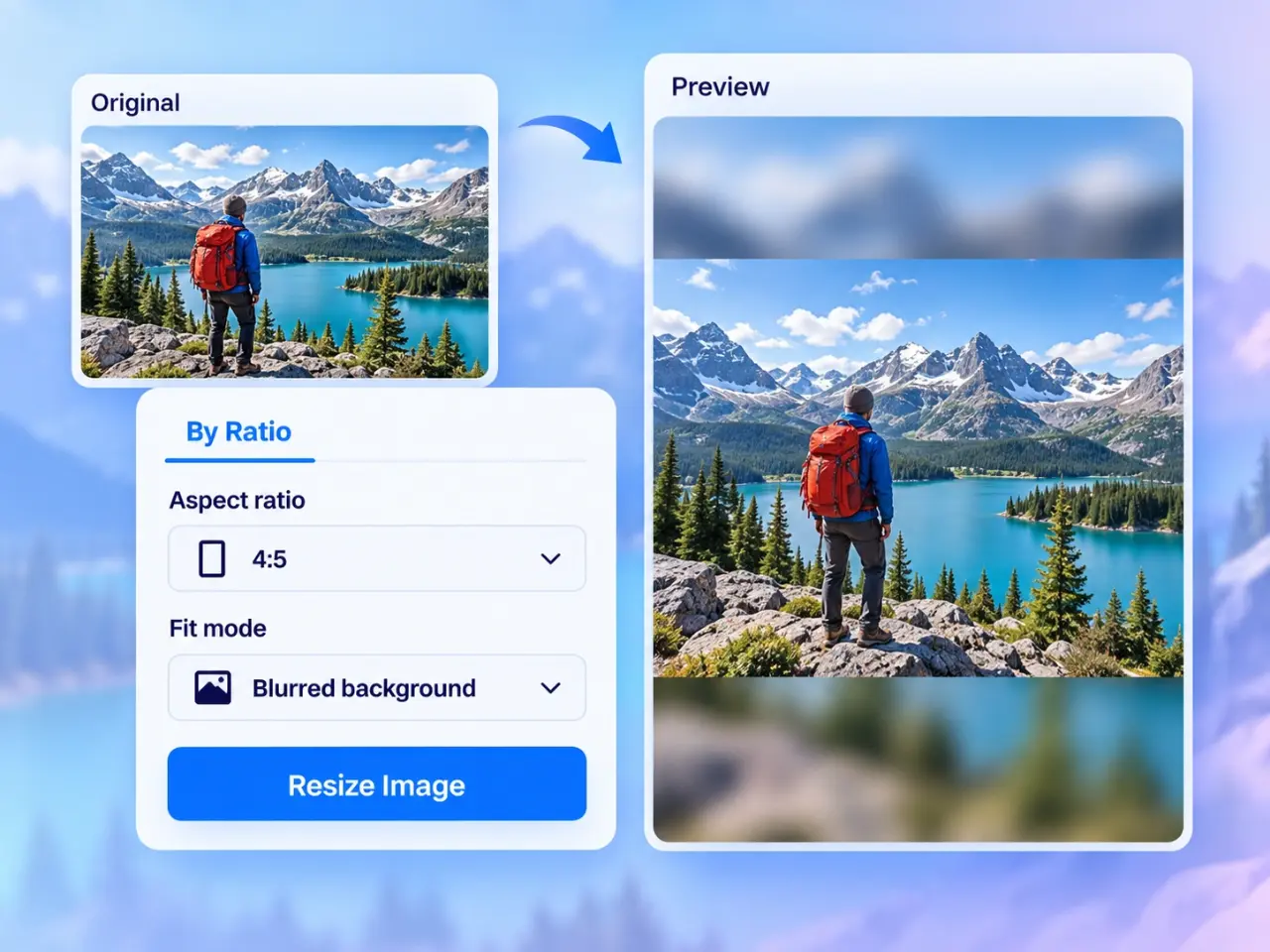
Apply common presets for Instagram, YouTube, X, and LinkedIn, or enter the dimensions required by the platform you use.
Resize images online by pixels, percentage, or common presets, with an optional aspect-ratio lock.
Explore more tools for your next task.
Instantly isolate subjects and remove busy backgrounds with one-click precision.
Remove image backgrounds for free with unlimited use and local processing. No signup or watermarks.
Split images into equal rows and columns for social grids, carousels, puzzles, and more.
Reduce images to 50KB, 100KB, 200KB, 500KB, or a custom target size.
Reduce MB-sized images to a KB target with compression and optional image resizing.
Crop photos with custom aspect ratios, freeform selection, and social media templates.
The imglab Image Resizer is an online utility that changes the pixel dimensions of digital graphics and photos. Whether you need to reduce a large camera photo for a website, adjust an image for a social post, or meet an upload specification, the optional aspect-ratio lock can keep width and height proportional while you resize.
Drag and drop an image file or choose one of the sample photos to start.
Choose a social preset or enter a custom width and height in pixels or as a percentage. Use the lock to preserve the aspect ratio.
Select PNG, JPEG, WebP, or AVIF and adjust the quality control for the output you need.
Select Resize Image to generate the result, review the preview, then download the resized image.
Apply common presets for Instagram, YouTube, X, and LinkedIn, or enter the dimensions required by the platform you use.
Enter exact pixel or percentage values with an optional aspect-ratio lock to avoid unintended stretching.
Reduce oversized source images to practical display dimensions before adding them to a website or application.
Save the resized result as WebP, AVIF, PNG with transparency, or JPEG for photographs and everyday sharing.
Browser image smoothing helps produce a practical result, while the preview lets you inspect the image before download.
Generate a resized result, then check its dimensions, file size, and visual preview before downloading.
Images selected for resizing are processed locally in your browser and are not sent to an imglab server.
Download the result without an imglab watermark or account requirement.
Keep the aspect-ratio lock enabled when you want to preserve the original shape of a photo. For the clearest result, start with the highest-quality source available, choose dimensions that match where the image will be displayed, and compare PNG, JPEG, WebP, and AVIF exports when file size matters.
The Lock Aspect Ratio option is enabled by default. When you alter the width, the height updates proportionally so the photo keeps its shape. Unlock it only when you intentionally need non-proportional dimensions.
Yes. Switch from Pixels to Percentage to scale the original image down or up by the amount you choose.
WebP and AVIF are useful modern options for efficient web images. PNG is appropriate when transparency or sharp interface graphics matter, while JPEG is commonly used for photographs. Compare the preview and downloaded size for your specific image.
imglab does not impose a fixed upload limit for local resizing, but your browser, device memory, image dimensions, and file complexity determine what can be processed reliably. If a large image fails, try a smaller source file or a device with more available memory.