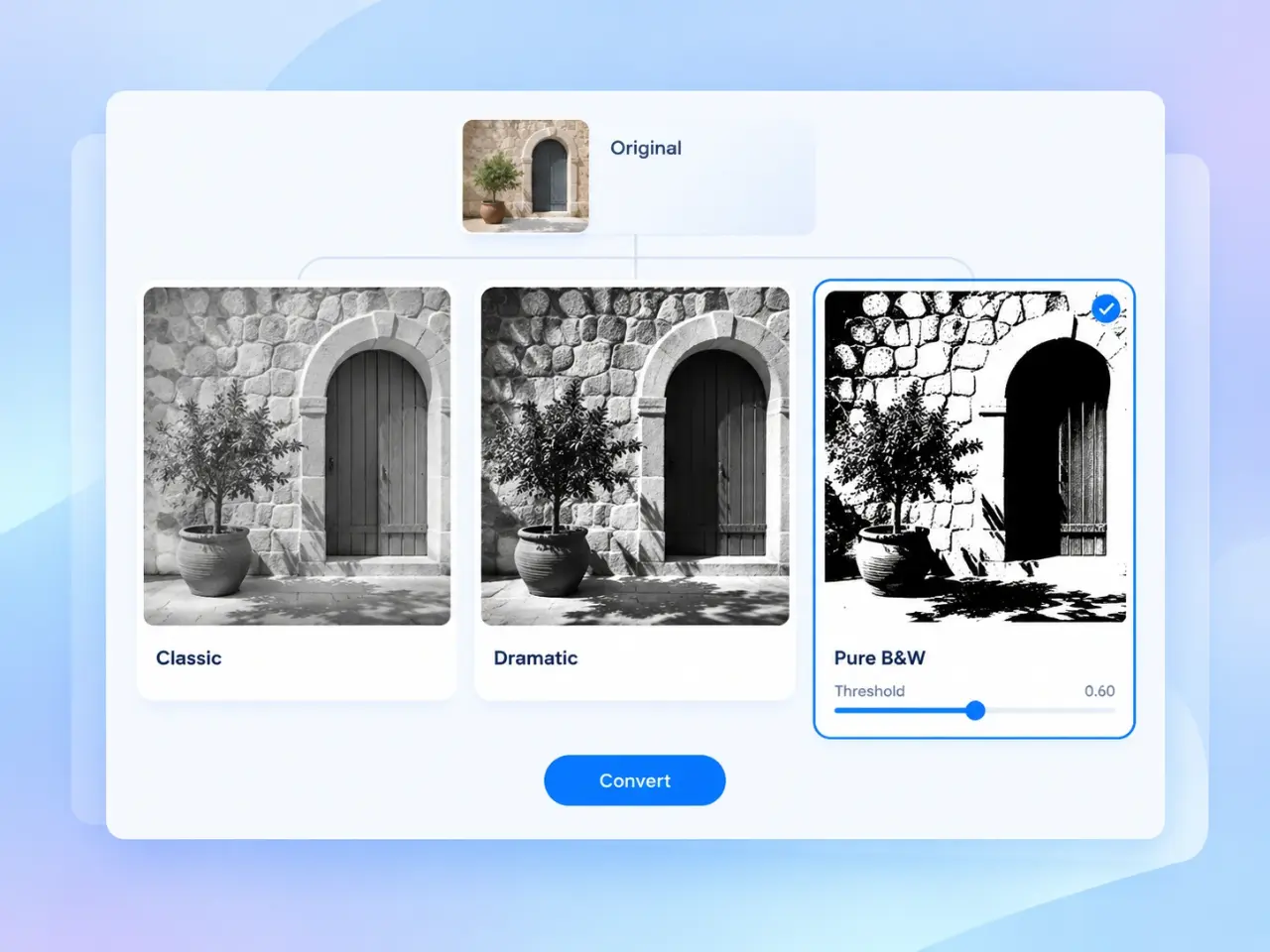
Four Monochrome Styles

Black and White Image

Make an image black and white with natural grayscale, dramatic photography, pure two-tone, or textured monochrome styles.

4Black & White Styles
LocalImage Processing
3Output Formats
PNG, JPG, WebP & more

Click to browse or drag & drop an image

Try Sample:

Black & White Style

Select an image to get started.
PreviewNo image selected

Your black and white image will appear here.

Select an image and choose the style you want.

No image selected yet.

Overview

What is a Black and White Image Converter?

A black and white image converter removes the original colors from a photo or graphic and rebuilds the result with neutral tones. Depending on the selected style, the finished picture can contain smooth shades of gray, stronger photographic contrast, only pure black and white, or a textured monochrome pattern. These choices matter because a soft portrait, a dramatic street photograph, and a one-color print design do not need the same treatment. The imglab converter keeps the original image dimensions and lets you compare the color source with the black and white result before downloading it.

Step by Step

How to Make an Image Black and White

  1. 01

    Upload an Image

    Drag and drop a picture, browse your device, or choose a sample photo to begin.

  2. 02

    Choose a Style

    Select Classic, Dramatic, Pure B&W, or Dithered according to the result you want.

  3. 03

    Adjust the Tone

    Fine-tune contrast for Dramatic mode or the black and white threshold for two-tone modes.

  4. 04

    Convert and Download

    Create the result, compare it with the original, choose an output format, and download it.

Key Use Cases

What You Can Do with Black and White Images

Create Black and White Photography

Use Classic for balanced gray tones or Dramatic for deeper shadows and brighter highlights. Both styles help shape the mood of portraits, architecture, landscapes, and street photography without removing every midtone.

Prepare Two-Color Artwork

Pure B&W turns the image into black and white areas without gray. Adjust the threshold to decide which parts become dark or light when preparing simple graphics, stencils, or one-color references.

Make Retro Printed Effects

Dithered mode represents intermediate tones with a visible black and white texture. It works well for retro computer graphics, zine-inspired layouts, pixel art references, and print-style experiments.

Remove Distracting Color

Convert an image to black and white when color competes with its shapes, lighting, or message. A neutral result can help you review composition or create consistent visuals for presentations and social posts.

Advantages

Why Use This Black and White Image Converter?

Four Distinct Black and White Styles

Choose a natural grayscale conversion, a stronger photography look, a strict two-tone result, or a textured monochrome effect instead of relying on one generic filter.

Useful Tone Controls

Adjust the setting that matters for the selected style. Dramatic mode provides contrast control, while Pure B&W and Dithered modes let you change the black and white threshold.

Original and Result Comparison

Switch between the color source and converted result in the same workspace. You can change the style or tone and convert again before saving the final image.

Local Image Processing

The selected image is processed locally in your browser and is not uploaded to an imglab server through this tool. The downloaded result remains under your control.

Tips

Tips for Better Black and White Images

Start with Classic when you want a dependable result with natural gray tones. Try Dramatic when the picture has strong lighting, defined shapes, or a subject that benefits from deeper contrast. For Pure B&W, move the threshold gradually and watch whether important edges disappear into solid black or white. Dithered mode is intentionally textured and may suit graphics better than smooth portraits. Choose PNG for crisp two-tone artwork or transparency, JPG for broadly compatible photographs, and WebP when you want a modern balance of image quality and file size.

Black and White Image FAQ

What is the difference between grayscale and pure black and white?

Grayscale images contain many shades between black and white, which preserves smooth lighting and detail. Pure B&W uses only two tones, so every visible pixel becomes either black or white.

Which mode is best for black and white photography?

Classic is a practical starting point for natural portraits and everyday photos. Dramatic adds stronger contrast for a bolder look. The best choice depends on the lighting, subject, and mood you want, so compare both before downloading.

What does the threshold control change?

The threshold sets the dividing point between black and white in Pure B&W and Dithered modes. A lower setting makes more of the image white, while a higher setting makes more areas black.

Can the converter keep a transparent background?

Yes. Transparent areas remain transparent during conversion. Choose PNG or WebP for the output when you need to retain transparency, because JPG does not support transparent pixels.

Are my photos uploaded or stored?

No. This black and white image converter processes the selected file locally in your browser. The image and generated result are not uploaded to or stored on an imglab server through this workflow.

Will converting to black and white change the image size?

The pixel width and height remain unchanged. The downloaded file size may differ because the chosen style, output format, quality setting, and image content affect how the result is saved.