Create Retro Social Graphics
Pixelate an image for profile images, social posts, headers, and event graphics when you want a playful, game-inspired visual treatment.
Turn an image into pixel art with adjustable pixel size, color controls, palettes, and an optional grid.
Explore more tools for your next task.
Resize images to exact pixel dimensions, a percentage, or common social media presets.
Crop photos with custom aspect ratios, freeform selection, and social media templates.
Invert image colors to create a negative effect while preserving the original dimensions.
Create original images from a written idea or transform a photo into a new visual.
Upload an image, describe the change you want, and create a new version to review.
Enlarge an image while improving visible detail for a clearer high-resolution result.
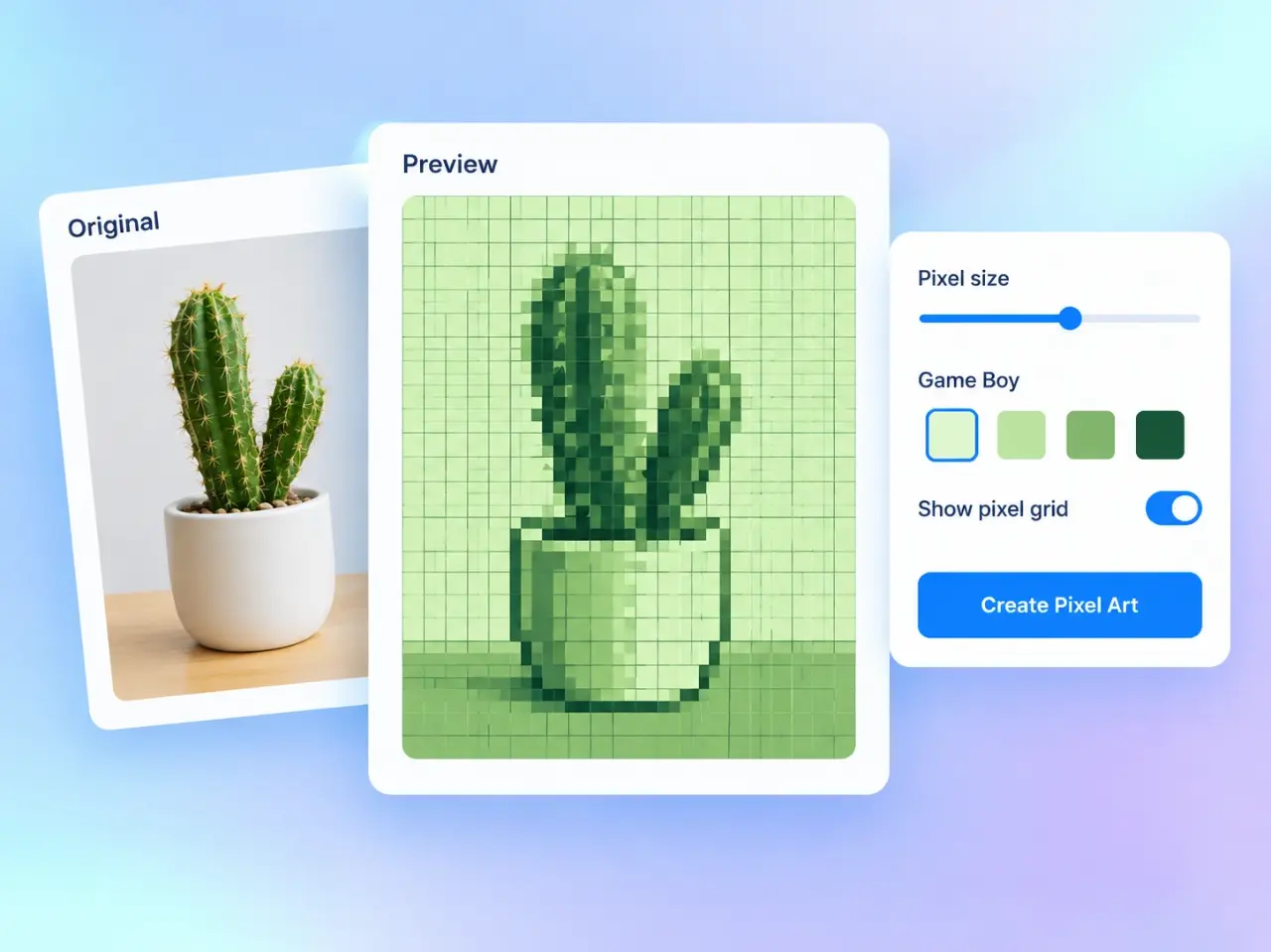
A pixel art converter transforms a photo or graphic into a picture made from clearly visible color blocks. It reduces small details into larger pixels, giving you a stylized result that can feel retro, game-inspired, or intentionally graphic. Use this image to pixel art tool when you want to pixelate a photo for an avatar, a social post, a creative reference, or a simple visual experiment. You can set the pixel size, tune brightness, contrast, and saturation, then limit the finished picture to a selected color palette when you want a more consistent pixel art style. The result keeps the source image dimensions, so it is easy to place in an existing design, upload field, or post layout. Start with the live preview to compare a finer pixelated image against a bolder, more simplified version before you create the download.
Drag in a picture, browse your device, paste an image, or begin with a sample image.
Move the pixel size slider to control the size of each block, then adjust brightness, contrast, and saturation to shape the color and mood.
Optionally limit colors with PICO-8, SUNSET-8, Game Boy, or Grayscale 4. Turn on a grid and choose its color when you want pixel boundaries to show.
Review the live preview, create the full-size image, choose PNG, JPG, WebP, or AVIF, and download the result.
Pixelate an image for profile images, social posts, headers, and event graphics when you want a playful, game-inspired visual treatment.
Simplify a photo into larger color blocks before using it as a visual reference for drawing, game assets, needlework, or other grid-based creative projects.
Use a preset palette to create a picture with pixels chosen from a fixed set of colors, helping related designs feel intentionally connected.
Show a grid over each pixel block when you need an easier way to study the layout, recreate a design manually, or emphasize the block-based style.
Turn a portrait, pet photo, or favorite travel picture into a pixelated keepsake while keeping the source image dimensions for familiar layouts.
Adjust brightness, contrast, and saturation before pixelating an image to explore brighter highlights, deeper shadows, or more vivid color relationships.
See the pixel art update as you change the controls, so you can explore a look before creating the full-size downloadable image.
Choose any pixel size from 1 to 100. Use smaller values for finer detail and larger values for broad, expressive color blocks.
Turn on a color palette when you want the pixel art generator to use only the colors in a familiar style such as PICO-8 or SUNSET-8.
Add a colored grid when clear pixel boundaries help your project, or keep it off for a clean pixelated image without visible lines.
Your selected image is processed locally in your browser and is not uploaded to an imglab server through this standard tool.
Download in PNG, JPG, WebP, or AVIF. Pick PNG for crisp graphic edges and transparency, or choose another format for your sharing needs.
Start with a medium pixel size, then move gradually toward larger blocks until the subject remains recognizable but the picture has the simplified look you want. Increase contrast when the original looks flat, or lower saturation for a quieter palette. A preset palette is useful when you want a classic game-like color language; leave it off when you want to preserve more of the source image's colors. Grids are most useful with larger pixels. When the pixel size is below 5, grid lines can have a strong effect on the final picture. Choose PNG for sharp edges and transparent graphics, JPG for broad photo compatibility, and WebP or AVIF for efficient modern sharing.
Start around 10 to 20 for a recognizable image with a clear pixel art effect. Lower values keep more detail, while higher values create larger blocks and a more abstract look. The best size depends on the image dimensions and the style you want.
The pixel art maker maps each pixel color to the closest available color in the selected palette. This limits the result to a fixed set of colors and creates a more unified, stylized appearance.
Yes. Turn on Show pixel grid and select a grid color. The grid is drawn over each pixel block in the finished image. With pixels smaller than 5px, the lines can noticeably change the image appearance.
No. These controls change only the pixel art result you create in this tool. Your original selected image remains unchanged on your device.
No. This image to pixel art tool processes the selected file locally in your browser. The image and generated result are not uploaded to or stored on an imglab server through this workflow.
PNG is a practical choice for sharp block edges and transparent graphics. JPG is widely compatible but does not retain transparent areas. WebP and AVIF are efficient modern formats that can also keep transparency.