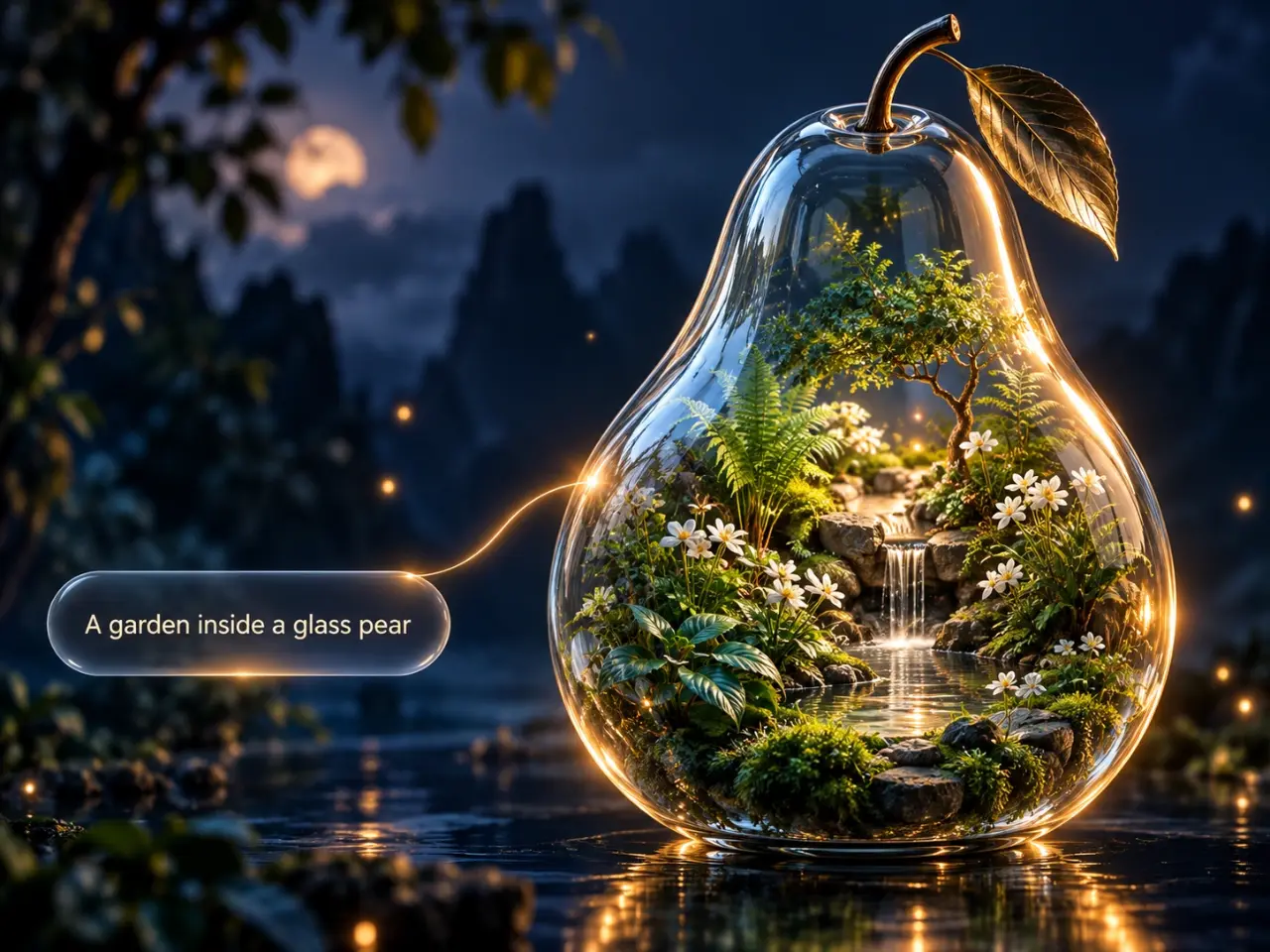
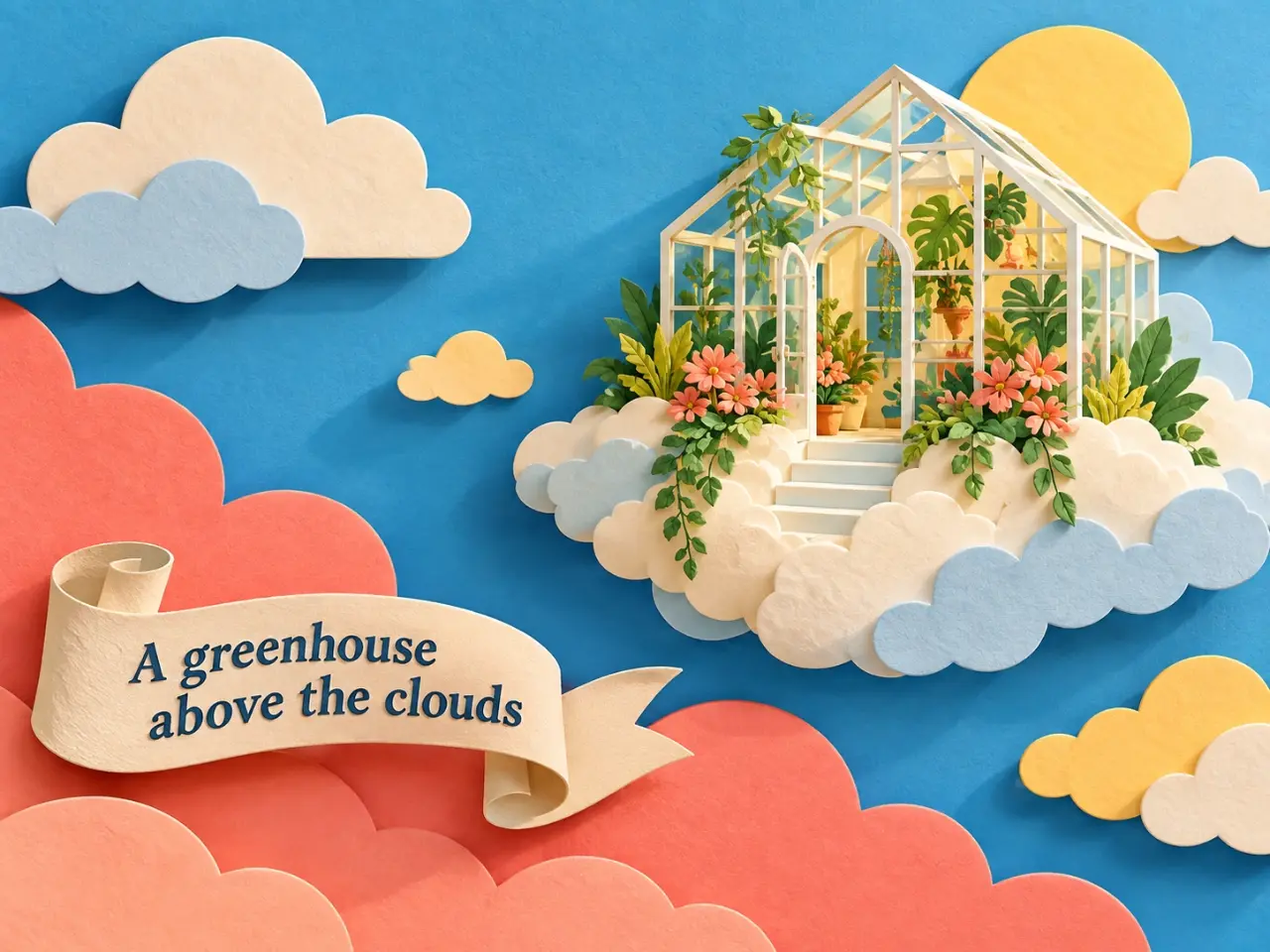
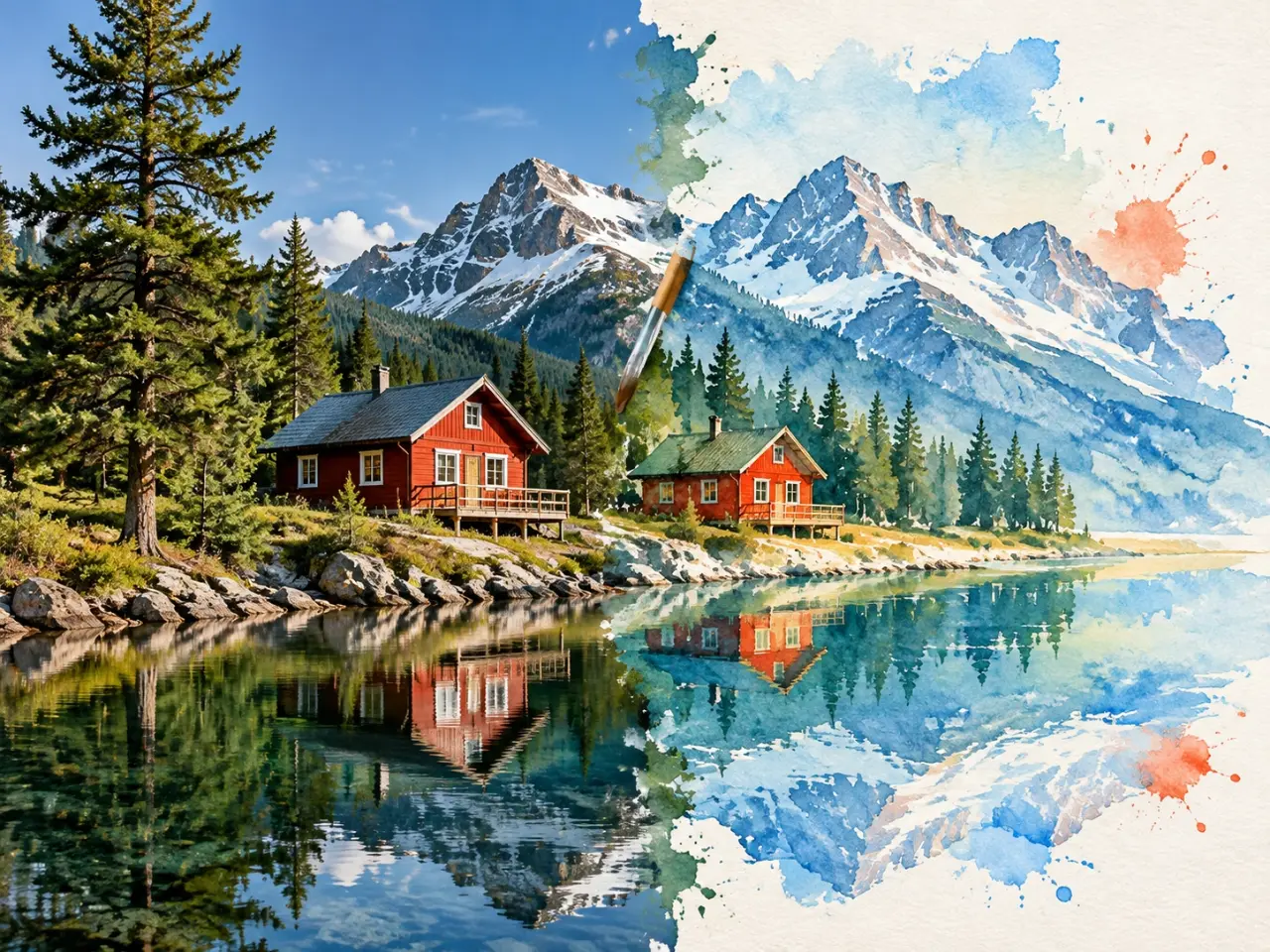
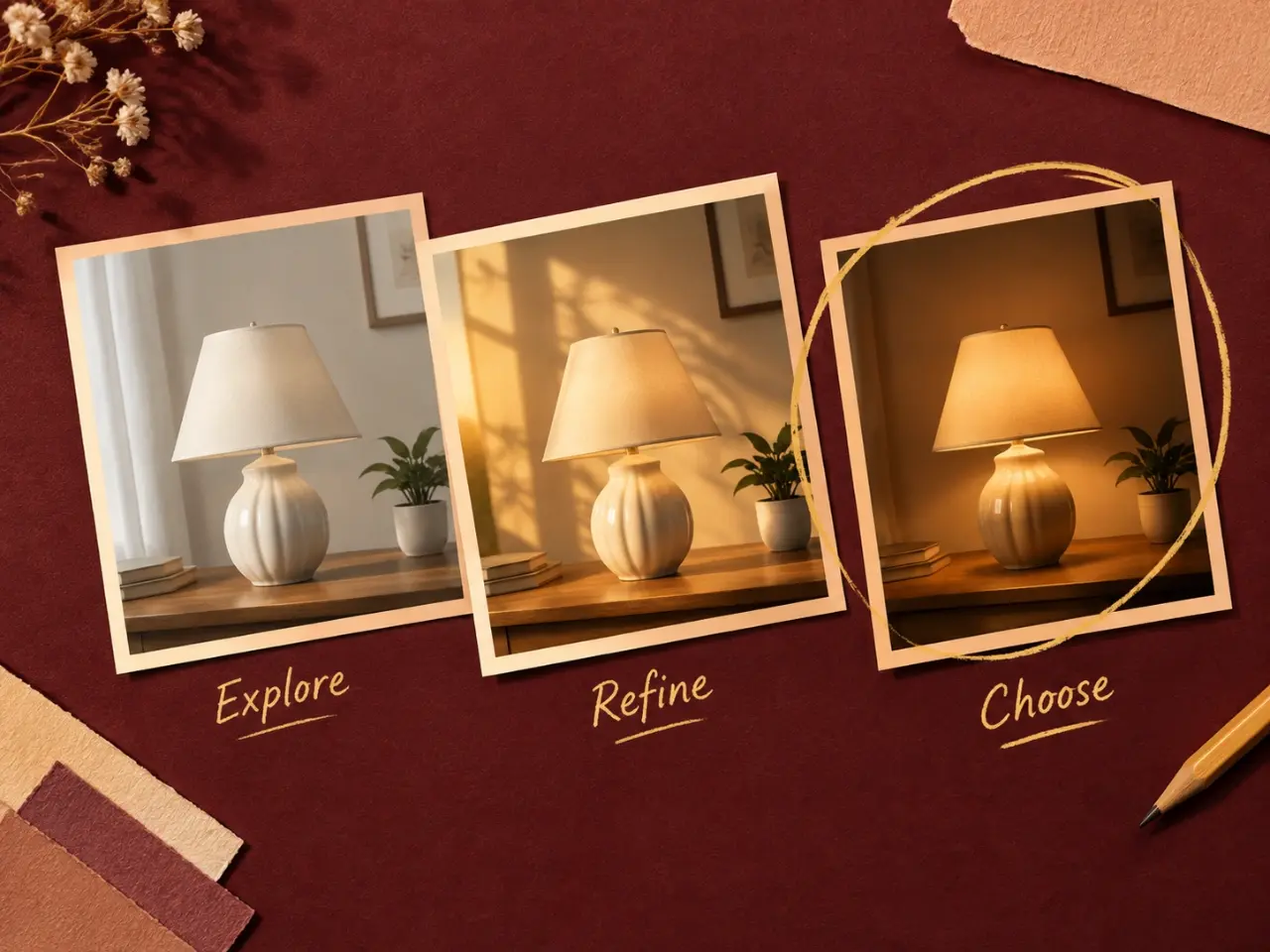
An AI image generator turns a written description into a new visual. Describe the subject, setting, mood, colors, and composition you have in mind, then choose an image option and create. You can also start with an image you already have and describe the changes you want. This makes it useful for early concept work, custom article art, social visuals, and other projects where you need an image that begins with your own direction. Claim daily free credits to explore image creation, while available image options and output choices can vary by selection. Results can differ from one creation to the next, so treat each image as a draft to review and refine before you use it publicly.
Step by Step
How to Use the Free AI Image Generator
01
Choose How to Start
Select Text to Image to create from a written idea, or Image to Image when you want to guide the result with an existing picture.
02
Describe Your Image
Write what you want to see, including the subject, setting, visual style, lighting, and any details that matter to your result.
03
Set the Composition
Choose an image option, output size, and aspect ratio that suit where you plan to use the finished visual.
04
Create, Review, and Download
Generate your image, inspect it in your recent creations, then download it or refine your description and try again.
Core Features
What Are the Core Features of AI Image Generator?
Create Images from a Written Idea
Turn a sentence, a detailed creative brief, or a quick visual concept into an AI generated image. Add useful details such as the subject, location, mood, color palette, and camera perspective to guide the result. It is a practical starting point when stock images do not match your idea or when you need to explore several directions before choosing one.
Upload a reference image when you want to preserve an idea, layout, or starting point while exploring a different treatment. Explain the change you want, then create a fresh version to compare. This can help when a sketch, an existing photo, or an earlier concept communicates part of the brief more clearly than words alone.
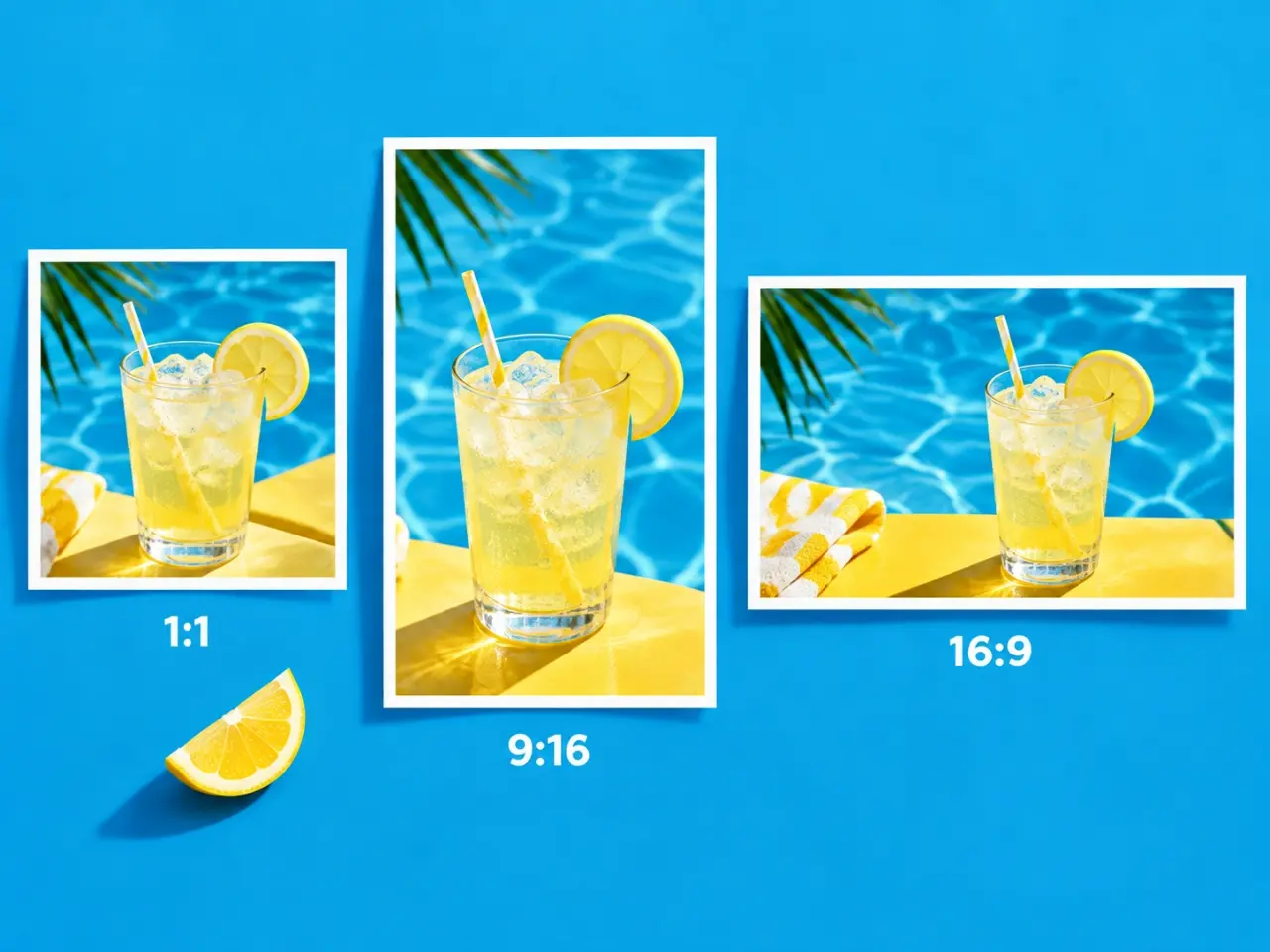
Select an aspect ratio that works for your destination before you create. Choose a square composition for profile visuals, a portrait layout for mobile-first content, or a wide format for banners and presentations. Starting in the right shape reduces the need to crop a promising result after it has been created.
Keep your prompt, creation choices, and recent images together while you work. Review a result, adjust the details that need attention, and create another version without losing your creative direction. Small, deliberate changes make it easier to understand which prompt details are helping you get closer to the image you want.
Create a visual direction for a launch, seasonal promotion, or social campaign before committing time to a full production. Use a few prompt variations to compare the mood, setting, and palette that best support the campaign message.
Make Social Media Visuals
Generate a starting visual for a post, story, cover image, or series, then choose an aspect ratio that fits the channel you use. A clear description of the subject and background can give a multi-post series a more consistent visual direction.
Bring Presentations to Life
Create tailored scenes, abstract concepts, and editorial-style visuals that help slides communicate an idea more clearly. This is useful when a topic is difficult to explain with a generic icon or a standard stock photograph.
Develop Product Directions
Visualize a product setting, package concept, or lifestyle scene to help shape an early creative brief and discuss possibilities. Treat early results as conversation material, then refine the prompt as the product direction becomes more specific.
Create Blog and Editorial Art
Turn an article theme or story angle into a custom illustration concept that feels aligned with the subject of your writing. Include the article's tone and intended audience in the description to create a more relevant visual starting point.
Rework a Starting Image
Use an uploaded image as a point of reference when you want to experiment with a new atmosphere, setting, or visual treatment. Describe one focused change at a time, such as the lighting, environment, or overall mood, so the next version is easier to evaluate.
Advantages
Why Use imglab AI Image Generator?
Daily Free Credits
Claim daily free credits and try the image generator as part of your regular creative workflow. Use those attempts to test prompt details and image shapes that matter to your own projects.
Text and Image Starting Points
Begin from a written prompt when you have a new idea, or upload an image when a visual reference helps communicate the direction you want. Both paths are available in the same creation space, so you can choose the approach that suits the brief.
Flexible Composition Choices
Choose an available aspect ratio and output size before creating so the image begins in a shape that better fits its intended use. The available selections are shown with the image option you choose, keeping important output choices visible before you create.
Room to Iterate
Your recent creations stay visible in the workspace, making it easier to compare attempts and improve a prompt as your idea takes shape. You can use those comparisons to decide whether a new prompt needs more detail, a different emphasis, or a simpler direction.
Tips
Tips for Better AI Image Results
Start with a clear subject, then add the setting, desired mood, lighting, and composition. Instead of asking for a generic product photo, describe the product, surface, background, angle, and feeling you want. Keep the first prompt focused; if the first result is close, change one or two details at a time so you can see what improves it. Choose the aspect ratio before generating, and use a reference image when an existing layout or visual direction is important. If text, logos, or precise brand details matter, inspect the completed image at the intended display size before relying on it. Always review the finished image carefully before publishing or using it in a client project.
User Feedback
What Do Users Say About AI Image Generator?
“A client needed three hero-image directions for a Monday review, and I did not have time to mock them all up. I put the brief into the AI image generator and had enough to get the conversation moving.”
“I had a good product photo, but the background felt wrong for the post. I uploaded it, asked for a brighter kitchen scene, and the image-to-image option got me much closer than starting over.”
“I keep using this free AI photo generator when I need a vertical Story graphic. Picking 9:16 upfront means I am not fighting a crop after I get a result I like.”
“Our pitch deck had a slide about frictionless onboarding and no obvious stock image. I made a few simple prompts in the AI image generator and finally had something the team could react to.”
“I was stuck on a book-cover concept and only had a messy pencil sketch. Uploading it gave me a few useful directions without losing the composition I already liked.”
“I use the daily free credits like a sketchpad. Before I ask an illustrator for final art, I test whether the lighting and mood in my head actually work together.”
AI Image Generator FAQ
Is this a free AI image generator?
You can claim free credits every day after creating an account. Each creation uses credits, and the amount can vary based on the image option and output choices you select. The generation button shows the credit requirement for the choices currently selected before you start.
How do I write a better prompt for an AI photo generator?
Name the main subject first, then describe the setting, style, lighting, colors, composition, and details that are important. A focused prompt is usually easier to refine than a long list of unrelated ideas. For example, describe a specific setting and point of view instead of relying only on broad adjectives such as beautiful or modern.
Can I create an image from a photo I upload?
Yes. Choose Image to Image, upload a reference image, and describe the change or new direction you want to explore. The available upload and output choices depend on the image option you select. A specific instruction such as changing the background, mood, or treatment will usually give you a clearer basis for comparison.
Can I choose a portrait, square, or wide image?
Yes. Choose from the available aspect ratios before creating your image. Selecting the shape first helps you make a result that is better suited to its final placement, whether you are preparing a square post, a vertical story, or a wide presentation visual.
Why does my generated image look different from my prompt?
Image creation can interpret a description in different ways. Make the most important details more specific, remove conflicting instructions, and change only a small number of details between attempts to guide the next result. When a particular detail matters, place it near the beginning of the prompt and describe how it should appear.
Can I use the generated image right away?
You can review and download completed images from your recent creations. Before publishing, check the result carefully for accuracy, visual quality, and suitability for the place where you plan to use it. This is especially important for readable text, fine product details, and other elements that may need manual review.