Open iPhone Photos More Easily
Convert HEIC or HEIF photos to JPG when an upload form, editor, older computer, or recipient does not accept the original Apple photo format. Batch conversion makes it practical to prepare a group of photos at once.
Batch convert images to JPG, PNG, WebP, or AVIF, with optional resizing and simple individual or ZIP downloads.
Explore more tools for your next task.
Reduce images to 50KB, 100KB, 200KB, 500KB, or a custom target size.
Reduce MB-sized images to a KB target with compression and optional image resizing.
Create original images from a written idea or transform a photo into a new visual.
Create a video from a written idea, an image, or a reference video.
Upload an image, describe the change you want, and create a new version to review.
Instantly isolate subjects and remove busy backgrounds with one-click precision.
An image converter changes a picture from one file format to another so it is easier to open, share, publish, or upload. The imglab Image Converter accepts multiple images in one batch, including HEIC and HEIF photos, then creates JPG, PNG, WebP, or AVIF copies. You can keep the original dimensions or set a maximum edge to reduce oversized images while converting. Processing takes place on your device, and the finished files are available as individual downloads or one convenient ZIP.
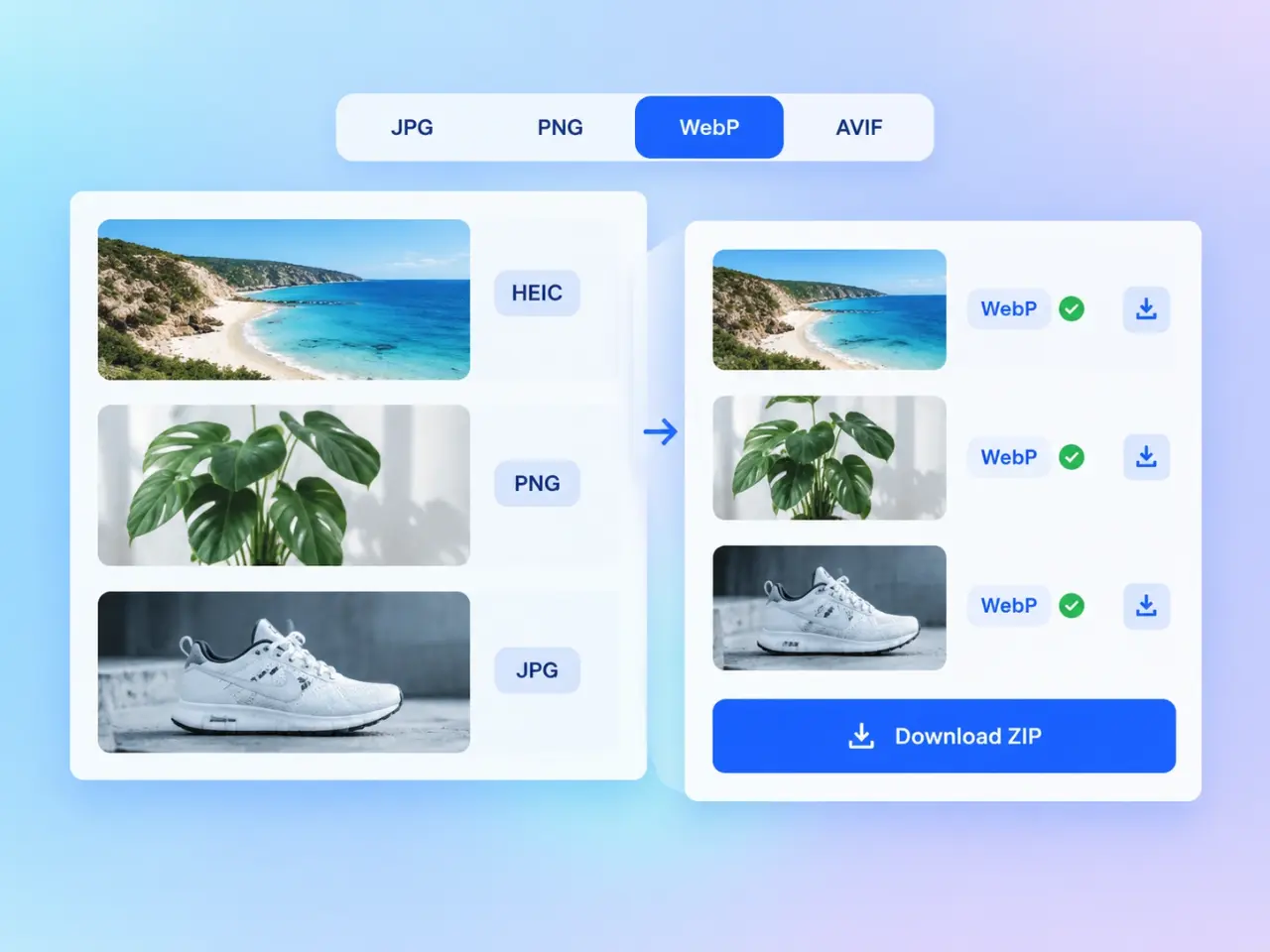
Drag several files into the upload area or choose images from your device. Review each preview, format, dimension, and file size.
Pick JPG, PNG, WebP, or AVIF. Optionally enable resizing and enter the maximum width or height you want for every image.
Select Convert Images and follow the progress bar while your batch is processed locally in the browser.
Save any converted image individually. If several results are ready, download the entire batch together as a ZIP file.
Convert HEIC or HEIF photos to JPG when an upload form, editor, older computer, or recipient does not accept the original Apple photo format. Batch conversion makes it practical to prepare a group of photos at once.
Turn JPG or PNG assets into WebP for modern websites, and use the maximum-edge option to avoid publishing source images that are much larger than their intended display size.
Choose PNG when logos, icons, interface graphics, and product cutouts need a transparent background. If you select JPG instead, transparent areas are placed on a white background for predictable viewing.
Add images received in different supported formats and export them all as one consistent file type. The result list provides the new name, dimensions, and size before you download anything.
Select multiple images, apply one output format and resize setting, then convert the complete group without repeating the same steps for every file.
The images you select are processed locally in your browser. They are not uploaded to or stored on an imglab server during this conversion workflow.
Check every output filename, pixel dimension, and file size in a compact result list. Download one file immediately or collect multiple results in a ZIP.
Set a maximum edge when large images also need smaller dimensions. Images keep their proportions, and sources already within the limit are not enlarged.
Choose JPG for photographs that need broad compatibility, PNG for graphics that require transparency, and WebP for compact web-ready images. Start from the best source available because converting a low-quality image cannot restore missing detail. When resizing a mixed batch, choose a maximum edge that suits the largest place the images will appear. Animated source formats are converted to a still image, and available memory can affect very large files or batches.
You can upload common formats your browser can decode, including JPG, PNG, WebP, AVIF, GIF, BMP, and SVG, plus HEIC and HEIF files. Browser and device capabilities can vary, so an unusual or damaged file may still fail to open.
The converter creates JPG, PNG, WebP, or AVIF files. JPG is widely compatible, PNG supports transparency, while WebP and AVIF provide compact options for modern websites and apps.
Yes. Add multiple images, choose one set of conversion options, and process the complete batch. Each result has its own download button, while Download All creates a ZIP when more than one result is available.
No. Maximum-edge resizing keeps the original proportions. The longest side is reduced to the limit you enter, while the other side is calculated automatically. Smaller images remain at their original dimensions.
No. This converter processes selected images on your device and does not upload them to an imglab server. Closing or refreshing the page clears the active workflow, while files you downloaded remain on your device.
PNG, WebP, and AVIF can retain transparent areas. JPG does not support transparency, so those areas receive a white background. Animated images are exported as a still image rather than a new animation.