Explore Illustration Palettes
Try different color combinations for a drawing, icon, or decorative graphic. A hue shift changes the existing colors together, making it useful for exploring variations before committing to a new direction.
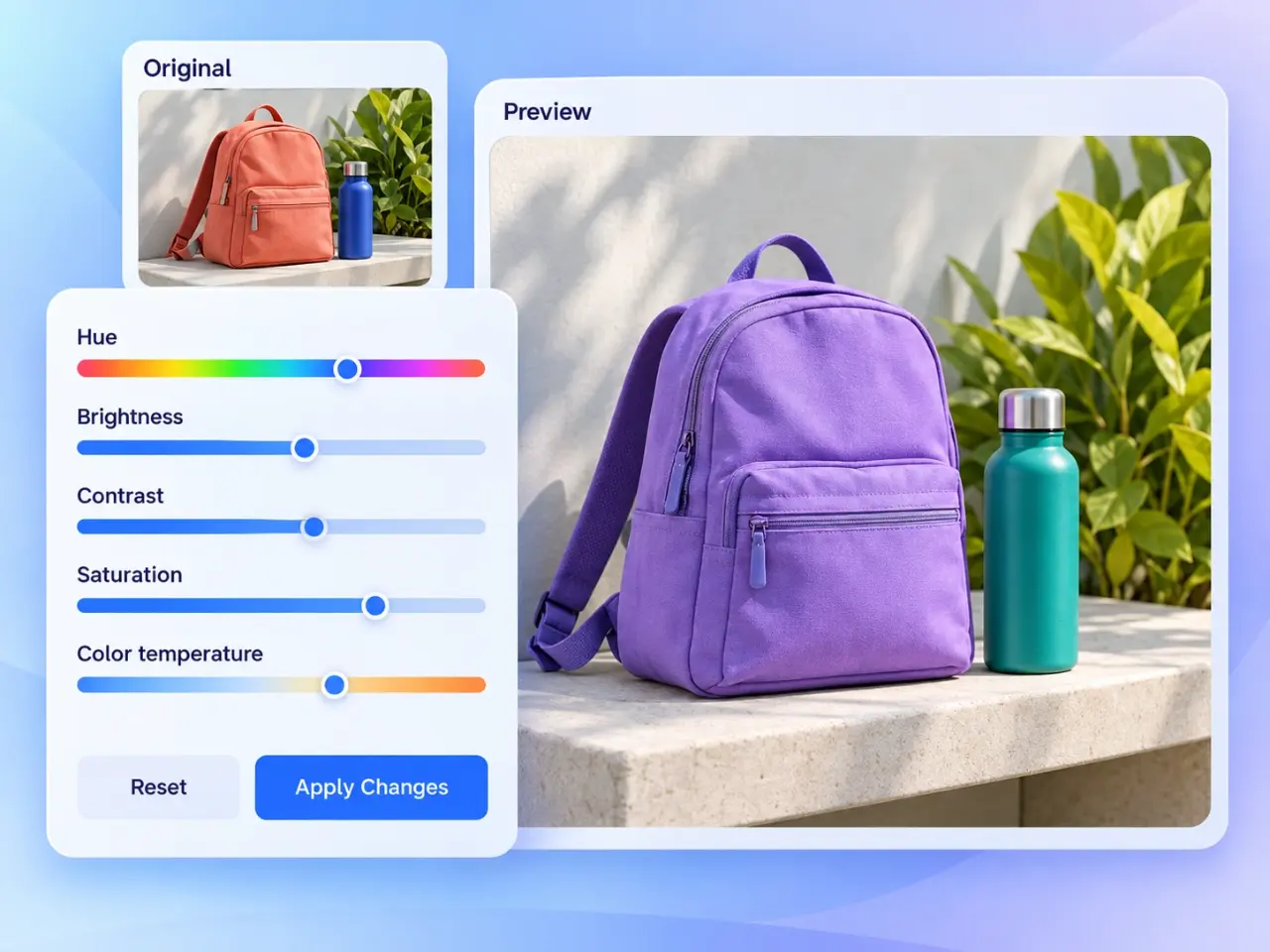
Change the hue of an image with live preview, then fine-tune brightness, contrast, saturation, and warmth.
Explore more tools for your next task.
Turn an image into pixel art with color controls, limited palettes, and an optional pixel grid.
Invert image colors to create a negative effect while preserving the original dimensions.
Convert photos to Classic, Dramatic, or Pure B&W black and white styles.
Resize images to exact pixel dimensions, a percentage, or common social media presets.
Create original images from a written idea or transform a photo into a new visual.
Create a video from a written idea, an image, or a reference video.
A hue changer shifts the colors in an image around the color wheel. Reds can become greens, blues can become purples, and a familiar photo can take on a completely different mood. Use this online hue changer to adjust image colors with hue, brightness, contrast, saturation, and color temperature controls. Balance the overall look in one place. Use it to explore an alternative palette for an illustration, refresh a social graphic, or make a photo feel warmer or cooler. Start with a small adjustment and watch the live preview before creating a download at the original image dimensions. Your original file on your device stays unchanged.
Choose a JPG, PNG, or WebP from your device, drag a file into the upload area, or paste an image. Try a sample if you want to explore the controls first.
Move Hue left or right to shift the colors. The range runs from −180° to +180°, with 0° leaving the original hues in place. Watch the preview as you adjust.
Tune brightness, contrast, saturation, and color temperature to finish the image. Use Reset whenever you want to return all five adjustments to their neutral values.
Choose PNG, JPG, WebP, or AVIF, then select Apply Changes. Review the result and download it. After another adjustment, apply the changes again to export your latest settings.
Try different color combinations for a drawing, icon, or decorative graphic. A hue shift changes the existing colors together, making it useful for exploring variations before committing to a new direction.
Give an existing post background or banner a different color mood. Keep an eye on text and logos because the adjustments affect those areas too, and check that the finished graphic remains readable.
Move color temperature toward warm for a cozier feel or toward cool for a quieter mood. Combine a gentle change with brightness adjustments instead of relying on a large hue rotation for natural-looking photos.
Lower saturation for restrained colors or increase it for a bolder graphic. This is useful when preparing an image to sit beside other visual elements without overwhelming the rest of the layout.
Brighten a dim picture or soften a harsh-looking image while adjusting its colors. Work in small steps: strong settings can hide highlight and shadow detail, and cannot recover detail missing from the original.
Use a dramatic hue shift for stylized avatars, pet portraits, or poster concepts. For realistic skin tones, keep hue changes subtle and focus on warmth, saturation, and brightness instead.
Adjust brightness, contrast, saturation, color temperature, and hue with individual sliders. Each starts at a neutral value, so you can change one aspect or combine several adjustments.
See the current look while moving the sliders. The preview helps you decide whether a change is useful before you create the full-size result for download.
Return all five sliders to zero with Reset. It gives you a clean starting point when an experiment has gone too far, without needing to select your image again.
Your selected image is processed in your browser and is not uploaded to an imglab server by this tool. You can make adjustments and create the download on your device.
The exported image keeps the original pixel width and height. Color adjustments do not crop or resize the picture, making the result easy to reuse in an existing layout.
Choose PNG, JPG, WebP, or AVIF to suit your destination. PNG is a practical option for transparent graphics; JPG offers broad compatibility for photos and does not preserve transparency.
Start with brightness and contrast if the picture looks too dark or flat. Then use color temperature for a warmer or cooler feel, and saturation to control color intensity. Save larger hue changes for creative effects. To judge a hue shift clearly, start with a colorful photo or illustration: pure grays have no hue to rotate. Check skin tones, skies, and any brand colors before downloading. For transparent artwork, choose PNG, WebP, or AVIF and inspect the exported result. Keep the original file so you can return to it for a different version later.
Hue describes which color you see, such as red, green, or blue. Saturation describes its intensity. Use Hue to change the color family and Saturation to make existing colors more muted or vivid.
No. A hue shifter rotates colors around the color wheel. Color temperature makes the image feel warmer or cooler. Use temperature for a gentle mood adjustment and hue for broader color changes.
Degrees describe how far colors move around the color wheel. A 0° setting keeps the original hues, while +120° turns red toward green and −120° turns red toward blue. Both −180° and +180° produce the same half-turn hue shift. Try smaller values for subtler changes.
Pure black, white, and gray have no color hue to rotate. Moving Hue alone will leave them unchanged. Color temperature can add a warm or cool tint, but this tool does not restore the original colors of a monochrome photo.
JPG, PNG, and WebP are supported, along with other images your browser can open. HEIC files are prepared by the upload field. Use an image up to 40 megapixels with neither side larger than 12,000 pixels. Downloads are still images.
Your selected photos and generated results are processed locally and are not uploaded to an imglab server through this tool. Downloading saves a separate adjusted image; the original file on your device remains unchanged.