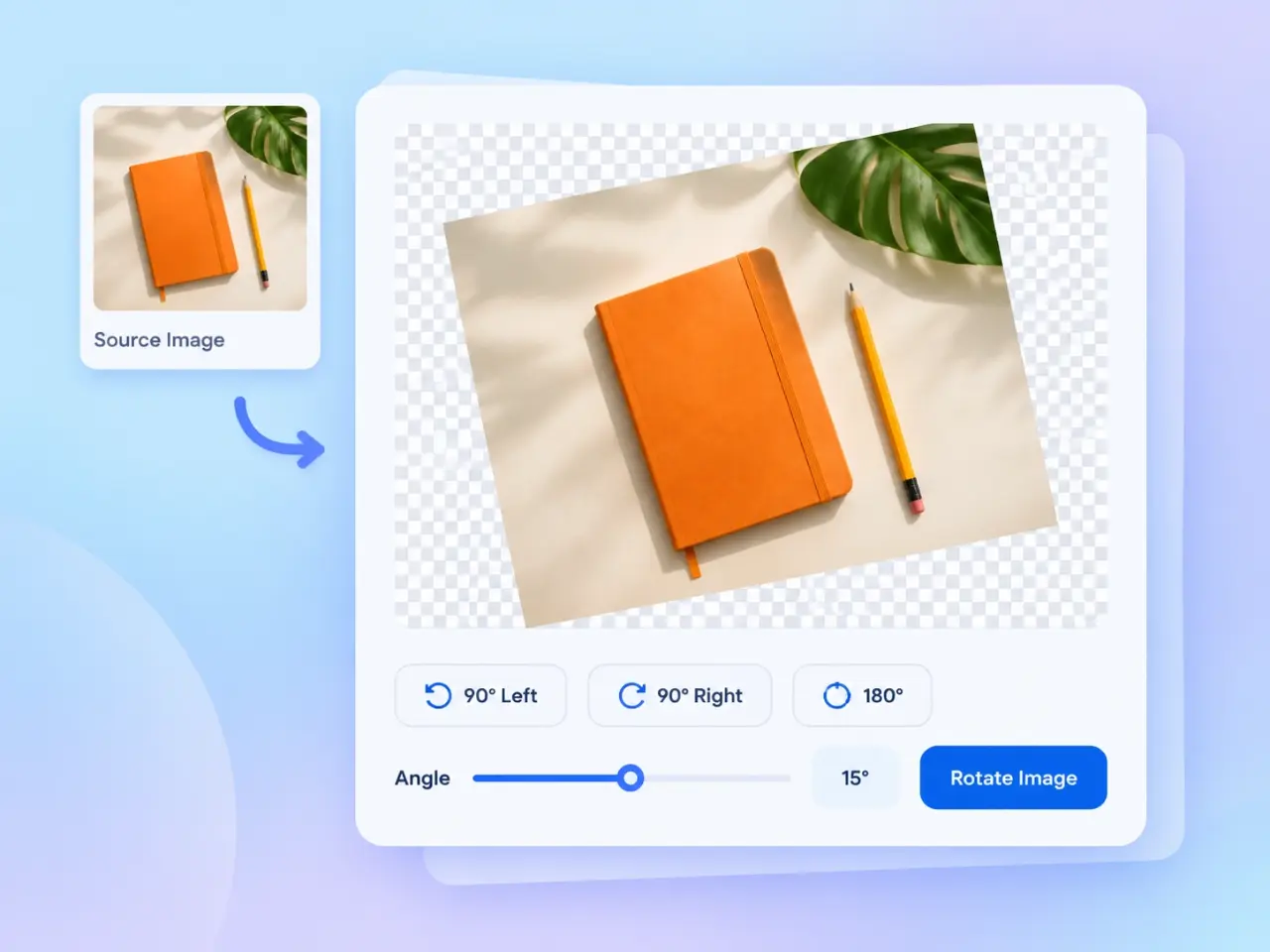
Correct Any Orientation

Rotate Image Online

Rotate pictures 90°, 180°, or to a custom angle, then flip them horizontally or vertically when needed.

AnyRotation Angle
2Flip Directions
LocalImage Processing
PNG, JPG, WebP, HEIC & more

Click to browse or drag & drop an image

Try Sample:
Orientation

Rotate Image

Flip Image

Select an image to get started.
PreviewNo image selected

Your transformed image will appear here.

Select an image, then rotate or flip it.

No image selected yet.

Overview

What Is the Rotate Image Tool?

Rotate Image is a free online image rotator for correcting photo orientation or turning a picture to a specific angle. Use the quick controls for a precise 90-degree left, 90-degree right, or 180-degree turn, or enter a custom angle when a photo needs smaller adjustments. The same workspace also includes horizontal and vertical flip controls, so you can finish common orientation changes without opening a full photo editor. Right-angle rotations exchange the width and height when needed, while a custom rotation expands the canvas to keep the entire picture visible. Rotation changes the orientation rather than the subject, colors, or proportions of the source. It does not crop the expanded corners or resize the picture to a different target, and the original file on your device remains unchanged after you download the new version.

Step by Step

How to Rotate an Image Online

  1. 01

    Upload an Image

    Drag and drop a picture, browse your device, or choose a sample image to begin.

  2. 02

    Choose the Angle

    Turn the image 90° left, 90° right, or 180°, or use the angle control for a custom rotation.

  3. 03

    Add a Flip if Needed

    Mirror the image horizontally or vertically, then choose the output format and quality.

  4. 04

    Preview and Download

    Apply the changes, compare the full-size result with the live preview, and download the finished image.

Key Use Cases

What You Can Do with This Image Rotator

Fix Sideways Phone Photos

Turn a portrait or landscape photo 90 degrees when it opens on its side. The clockwise and counterclockwise controls make it easy to correct the direction without guessing an angle. Review faces, text, and the horizon in the preview to make sure the picture now reads naturally.

Turn an Image Upside Down

Apply a 180-degree rotation to correct an upside-down scan, camera image, screenshot, or graphic. This keeps the picture content intact while reversing its top and bottom orientation.

Straighten a Tilted Picture

Enter a small positive or negative angle to level a horizon, scanned document, product photo, or composition. Custom rotations expand the output canvas so the complete image remains visible. This is useful when accuracy matters more than forcing the result back into the original rectangular dimensions.

Change the Direction of a Design

Combine rotation with a horizontal or vertical flip when a person, arrow, product, or decorative element should face a different direction in a layout or social post.

Advantages

Why Use This Online Image Rotator?

Quick and Exact Rotation Controls

Use familiar 90-degree and 180-degree actions for common corrections, then switch to the custom angle field when you need a more precise adjustment.

Rotate and Flip in One Workspace

Mirror an image left to right or top to bottom without leaving the rotation tool. Both flip directions can be combined with any selected angle.

Local Image Processing

The selected image is processed locally in your browser and is not uploaded to an imglab server through this tool. Your working image remains on your device, and refreshing or closing the page clears the current workspace and generated result.

Flexible Image Downloads

Save the finished image as PNG, JPG, WebP, or AVIF. Quality controls are available for compressed formats, while PNG is useful when transparent corners need to remain transparent.

Tips

Tips for Better Image Rotation

Start with the 90-degree controls when a photo is simply sideways, because right-angle rotations give a clean orientation change and predictable dimensions. Use a small custom angle to straighten a horizon or scan, and check the expanded corners before downloading. Custom rotations can create transparent space around the picture; choose PNG, WebP, or AVIF when you want to preserve that transparency, or JPG when a white background is appropriate. If a selfie or graphic faces the wrong direction rather than sitting at the wrong angle, use Horizontal Flip instead of rotation. Always compare the live preview with the generated result before saving, especially when the image contains readable text, logos, or directional symbols that may appear reversed after a flip.

Rotate Image FAQ

How do I rotate an image 90 degrees?

Upload the image, then select 90° Left for a counterclockwise turn or 90° Right for a clockwise turn. Apply the rotation, review the result, and download it in your preferred format.

Can I rotate an image to a custom angle?

Yes. Use the slider or enter a whole-number angle from -180° to 180°. Negative values rotate left and positive values rotate right. The output canvas expands so the full rotated image remains visible.

What is the difference between rotating and flipping an image?

Rotation turns the entire picture around its center by an angle. Flipping creates a mirrored version across a horizontal or vertical axis. You can combine both operations in this tool.

Will rotating an image change its dimensions?

A 90° or 270° rotation exchanges the original width and height, while a 180° rotation keeps them the same. A custom angle usually creates a larger canvas so the corners are not cropped.

Why do custom rotations create empty corners?

A rectangular image no longer fills a rectangular canvas after it is turned to a non-right angle. PNG, WebP, and AVIF can retain transparent corners. JPG does not support transparency, so its empty corners are filled with white.

Does rotating an image reduce its quality?

A right-angle rotation keeps the pixel grid aligned, but saving still creates a new image file in the selected output format. A custom angle requires the picture to be redrawn between pixel positions, so very fine details can change slightly. Choose PNG for lossless output or use a high quality setting for JPG, WebP, and AVIF, then inspect text, edges, and small details in the result preview before downloading.

Are my images uploaded or stored?

No. This image rotator processes the selected file locally in your browser. The source image and generated result are not uploaded to or stored on an imglab server through this workflow.

Which output formats can I download?

You can download the rotated image as PNG, JPG, WebP, or AVIF. Choose PNG when transparency matters, JPG for broad compatibility, or WebP and AVIF for modern compressed output.