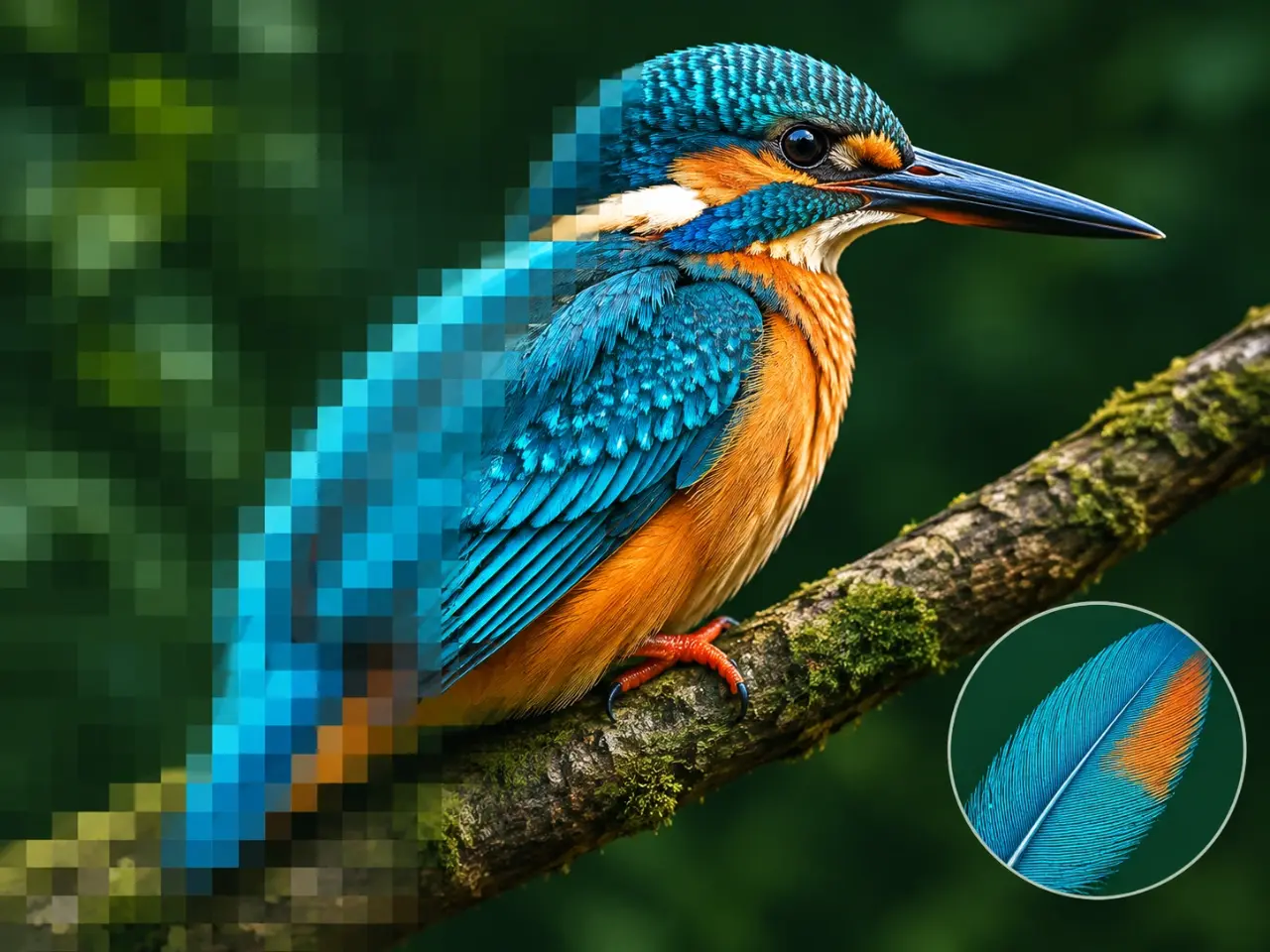
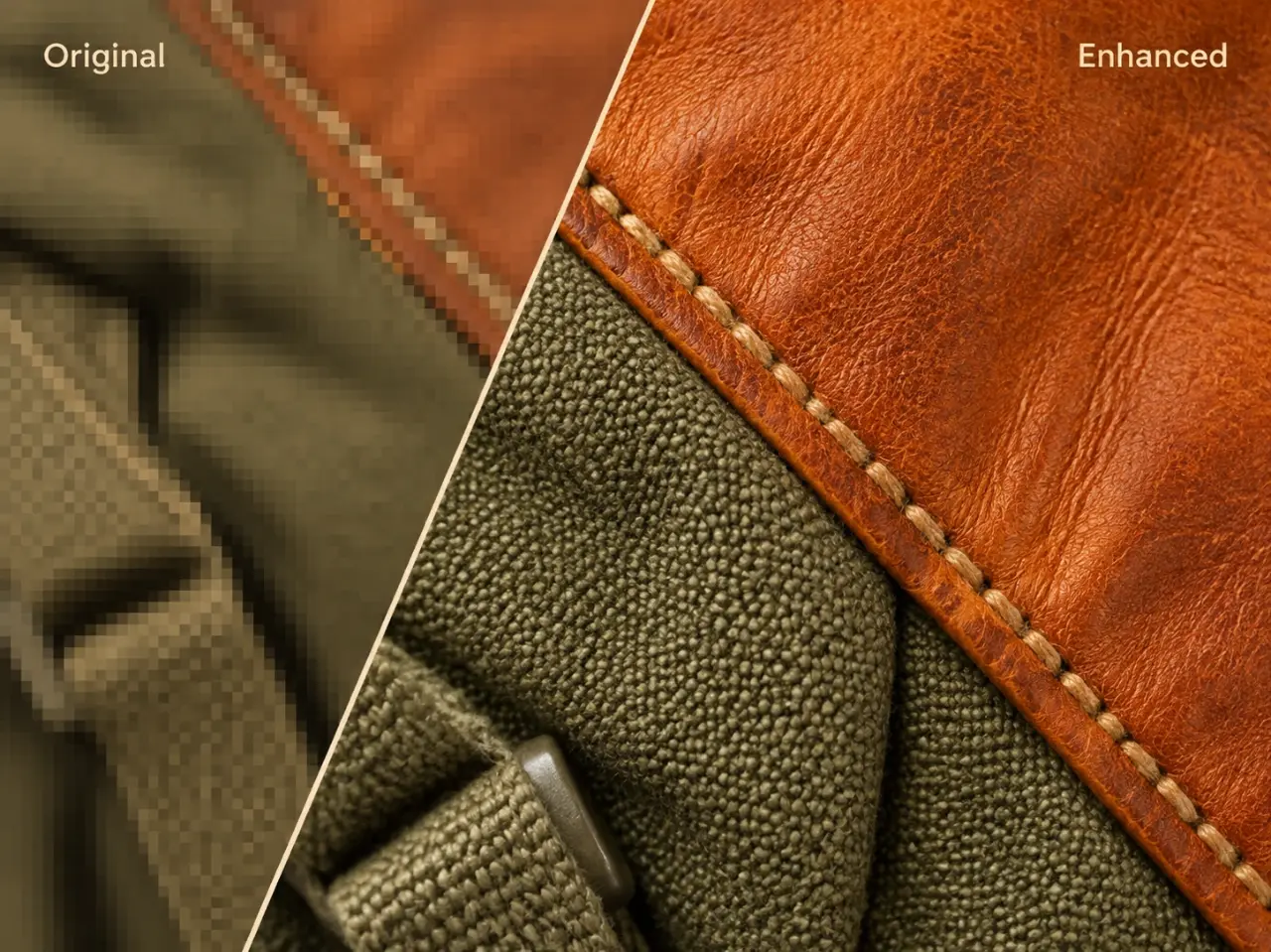
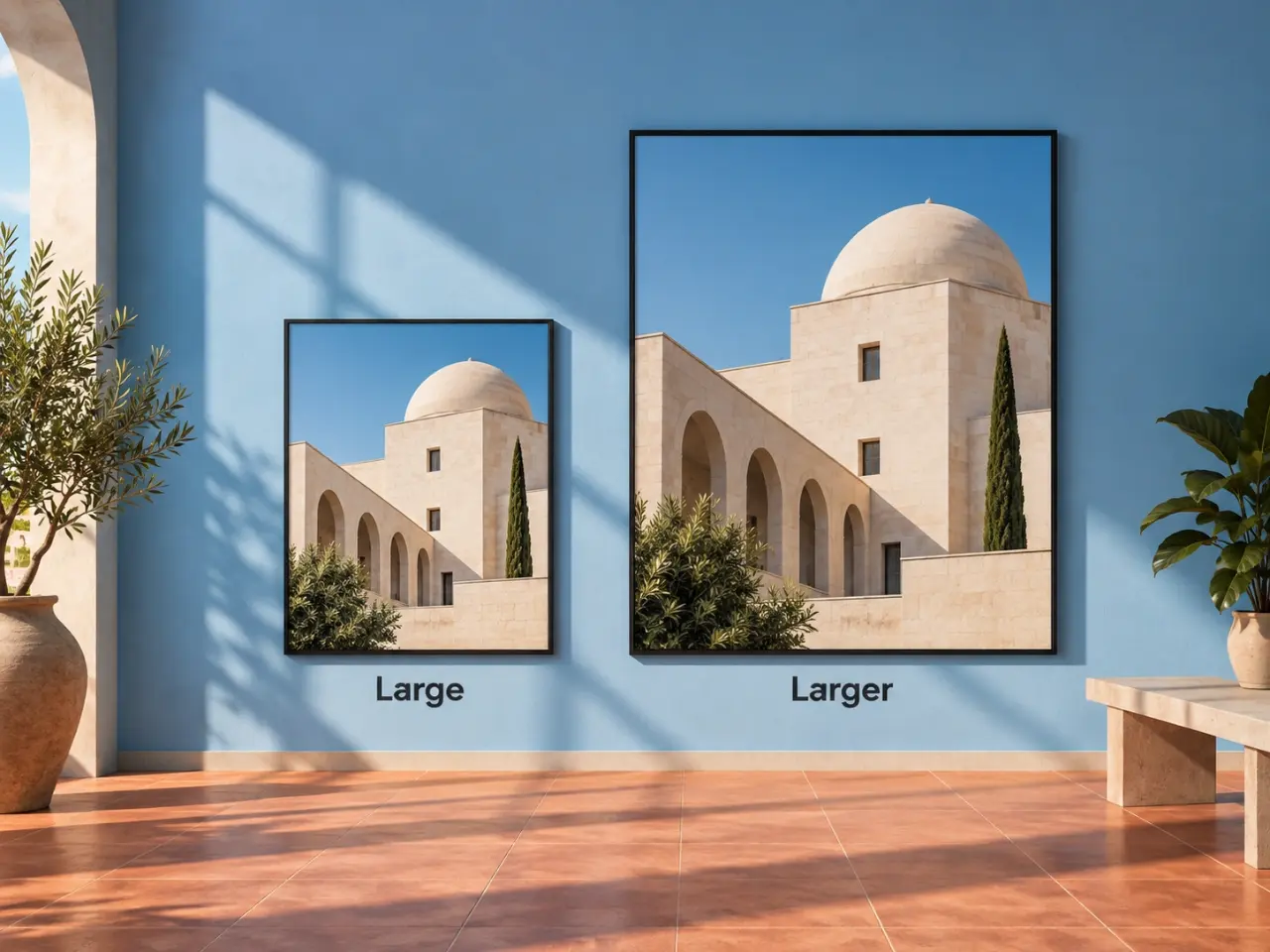
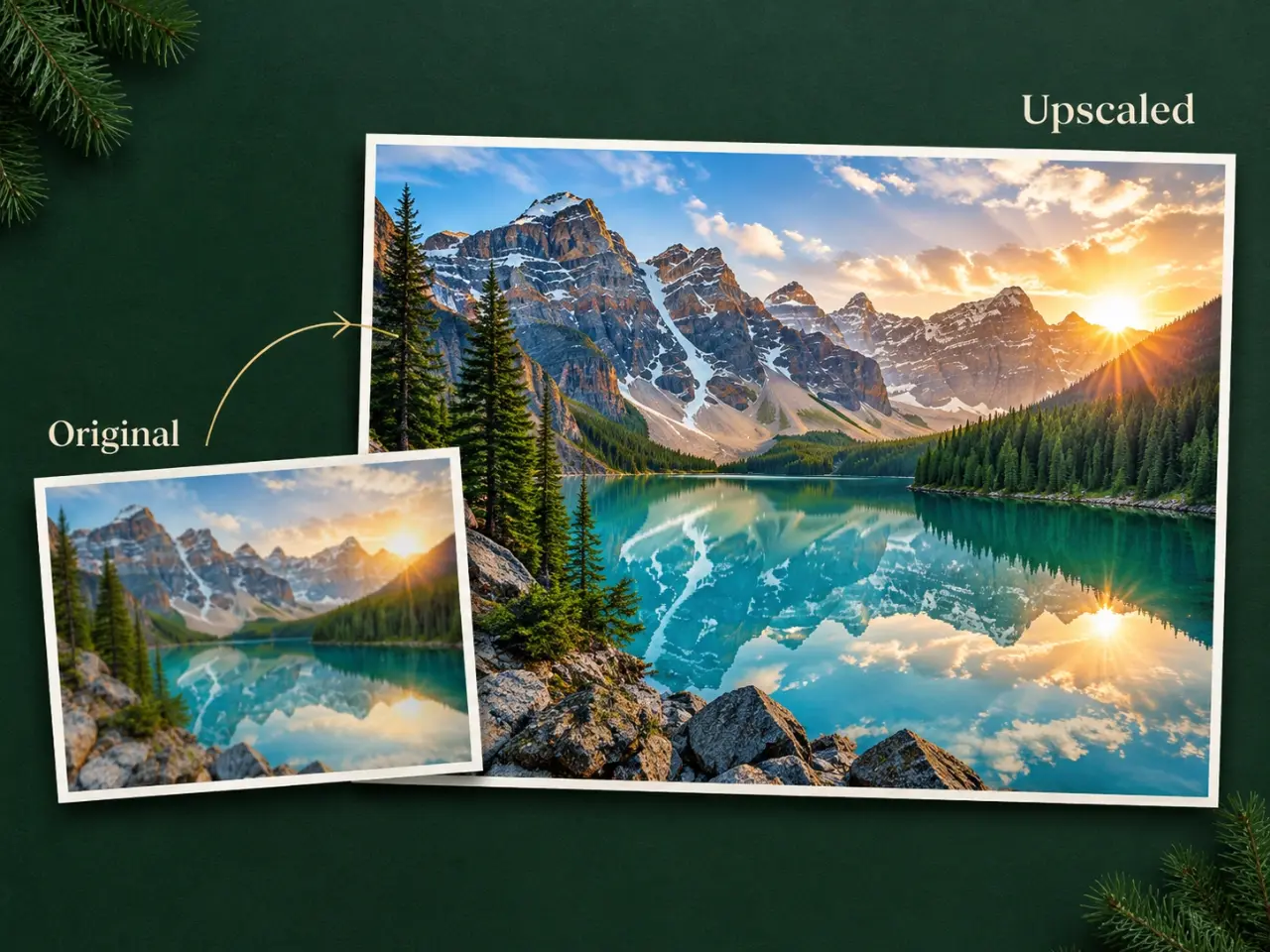
An AI image upscaler helps you enlarge a photo while improving the detail that matters in the larger version. Instead of only stretching existing pixels, it can create a clearer starting point for images that need more presence on a screen, in a listing, or in a design. Upload one image, select an output size, and review the result before downloading it. It is useful for small, soft, or older images, but it cannot recover every detail that was missing from an extremely blurred, compressed, or out-of-focus source. For the best outcome, begin with the clearest original you have and inspect the finished image at its intended size.
Step by Step
How to Upscale an Image with AI
01
Upload Your Image
Choose one image you want to make larger, clearer, or more ready for its next use.
02
Choose an Output Size
Select a 2×, 4×, or 8× enlargement, or choose a 4 MP or 8 MP output for your project.
03
Create the Upscaled Image
Start the AI image upscaler and allow it to prepare a higher-resolution version of your upload.
04
Review and Download
Check important edges, textures, and faces, then download the version that suits your intended use.
Core Features
What Are the Core Features of AI Image Upscaler?
Detail Enhancement, Not Just a Larger File
A basic resize can make an image bigger without making it more useful. This AI image enhancer is designed to improve visible definition as it enlarges a photo, helping edges, textures, and small visual elements look clearer in the new version. It gives you a stronger starting point when you need to upscale image files for a presentation, product page, social post, or personal project. Review the result closely whenever a logo, face, label, or fine pattern is important.
Different uses call for different output sizes. Choose 2×, 4×, or 8× when you know how much larger the image needs to be, or select a 4 MP or 8 MP result when a pixel target is more practical. A modest increase can be enough for a web graphic, while a higher-resolution export can give you more flexibility for larger layouts. Pick the smallest option that meets your needs to keep the image appropriate for where it will be displayed.
The goal is not to replace your image with something unfamiliar. The AI upscaler aims to stay faithful to the original composition, colors, and main subject while adding more realistic-looking detail where the image benefits from it. That makes it useful when you like the original photo but need an image quality enhancer before using it at a larger size. Keep the source file and compare both versions so you can choose the result that feels right for your work.
Improve image quality for a product photo that needs to look clearer in a storefront, marketplace listing, catalog tile, or promotion. Check labels and product textures before publishing.
Prepare Social Media Graphics
Upscale image files before using them in a post, cover, story, or campaign design where a small original would otherwise look soft or under-detailed.
Make Presentation Images Clearer
Increase resolution of image assets for slides, reports, and teaching materials, so an important photo or visual has more presence on a larger screen.
Improve Older Personal Photos
Give a favorite family image, travel photo, or scanned snapshot a clearer high-resolution version before sharing it, framing it, or adding it to a digital album.
Support Design Mockups
Use an AI photo enhancer when a reference image needs to hold up in a mood board, website mockup, portfolio piece, or print-ready layout.
Create More Flexible Marketing Assets
Increase photo resolution before reusing an approved image across a banner, email, landing page, or ad format with more room for the visual to breathe.
Advantages
Why Use imglab AI Image Upscaler?
A Focused Way to Increase Resolution
Open the tool when you need to make one image larger and clearer, without navigating a broad editing workspace or rebuilding your design from scratch.
Flexible Output Choices
Use size-based options for a predictable enlargement or megapixel-based outputs for a practical high-resolution target that fits the way you work.
Free Credits to Start
Create an account to claim free credits and try the AI image upscaler before deciding which output size works best for your image and project.
A Result You Can Inspect
Your completed image appears with your recent creations, giving you a chance to review the enhanced version and download only when it is ready to use.
Tips
Tips for Better AI Image Upscaling Results
Start with the highest-quality original available. Images with a clear subject, reasonable lighting, and visible detail usually provide a better basis for enhancement than heavily compressed screenshots or very blurred photos. Choose an output size for the final use rather than always selecting the largest option. After processing, zoom in on faces, text, labels, patterns, and clean lines, then view the image at the size your audience will actually see. If a result does not meet your needs, try a clearer source image and keep the original as your reference.
User Feedback
What Do Users Say About AI Image Upscaler?
“This AI Image Upscaler is fantastic for preparing client presentations. It can upscale image files quickly while keeping edges sharp, and the AI photo enhancer noticeably improves image quality without making colors look artificial.”
“I use this AI upscaler for older product photos that were too small for my website. It helps increase photo resolution and create high-resolution images that look much more professional in product listings.”
“The AI image enhancer is a huge time-saver for social content. It can increase the resolution of image assets for different platforms, and the image quality enhancer makes compressed photos look cleaner and more detailed.”
“I was impressed by how well this tool handles low-quality portraits. The AI higher-resolution result preserves facial details naturally, making it a useful option when clients need larger prints from older files.”
“This is one of the easiest ways to improve image quality for campaign visuals. The process is simple: upload, upscale image, and download a clearer version ready for ads, landing pages, or email banners.”
“The AI photo enhancer works especially well for screenshots, thumbnails, and travel photos. It helps turn blurry or small images into sharper high-resolution assets without needing complicated editing software.”
AI Image Upscaler FAQ
What does an AI image upscaler do?
An AI image upscaler creates a larger version of an uploaded image while aiming to improve the visible detail in that version. It can be useful when a small image needs a clearer starting point for a larger layout, product listing, post, or presentation. Review the final image before using it in an important project.
Is this more than simply resizing an image?
Yes. Standard resizing changes the dimensions of an image, while an AI image enhancer is intended to improve useful visual definition as it creates the larger version. Results depend on the source image, so this is not a guarantee that every lost detail can be restored. Check important areas before download.
Which output size should I choose?
Choose 2×, 4×, or 8× when you know the enlargement you need. Choose 4 MP or 8 MP when you are working toward a pixel-based output target. A smaller setting is often enough for web use, while a larger option can provide more room for wider layouts. Start with the smallest size that serves your project.
Can AI increase photo resolution for printing?
It can help you create a higher-resolution version to assess for a print project. Print quality also depends on the original photo, the final dimensions, paper, and printer. Before printing, inspect the upscaled image at the intended size and confirm that important details look suitable for the format you plan to use.
What images work best with an AI photo enhancer?
Clear images with a recognizable subject, visible edges, and useful original detail generally give you the best starting point. Heavily blurred, noisy, extremely small, or severely compressed files have less information to work with. Keep your original file and compare it with the enhanced result before using it publicly or professionally.
Is the AI image upscaler free to use?
You can create an account and claim free credits to try the tool. Upscaling uses credits, and the current amount is shown in the workspace before you create a result. Check your available balance and the creation details there before you begin.