Correct a Mirrored Selfie
Flip a front-camera photo horizontally when signs, clothing, labels, or other text appear backward. The live preview helps you confirm that readable details now face the intended direction before downloading.
Mirror pictures horizontally or vertically, preview every change instantly, and rotate them when needed.
Explore more tools for your next task.
Instantly isolate subjects and remove busy backgrounds with one-click precision.
Remove image backgrounds for free with unlimited use and local processing. No signup or watermarks.
Resize images to exact pixel dimensions, a percentage, or common social media presets.
Split images into equal rows and columns for social grids, carousels, puzzles, and more.
Reduce images to 50KB, 100KB, 200KB, 500KB, or a custom target size.
Reduce MB-sized images to a KB target with compression and optional image resizing.
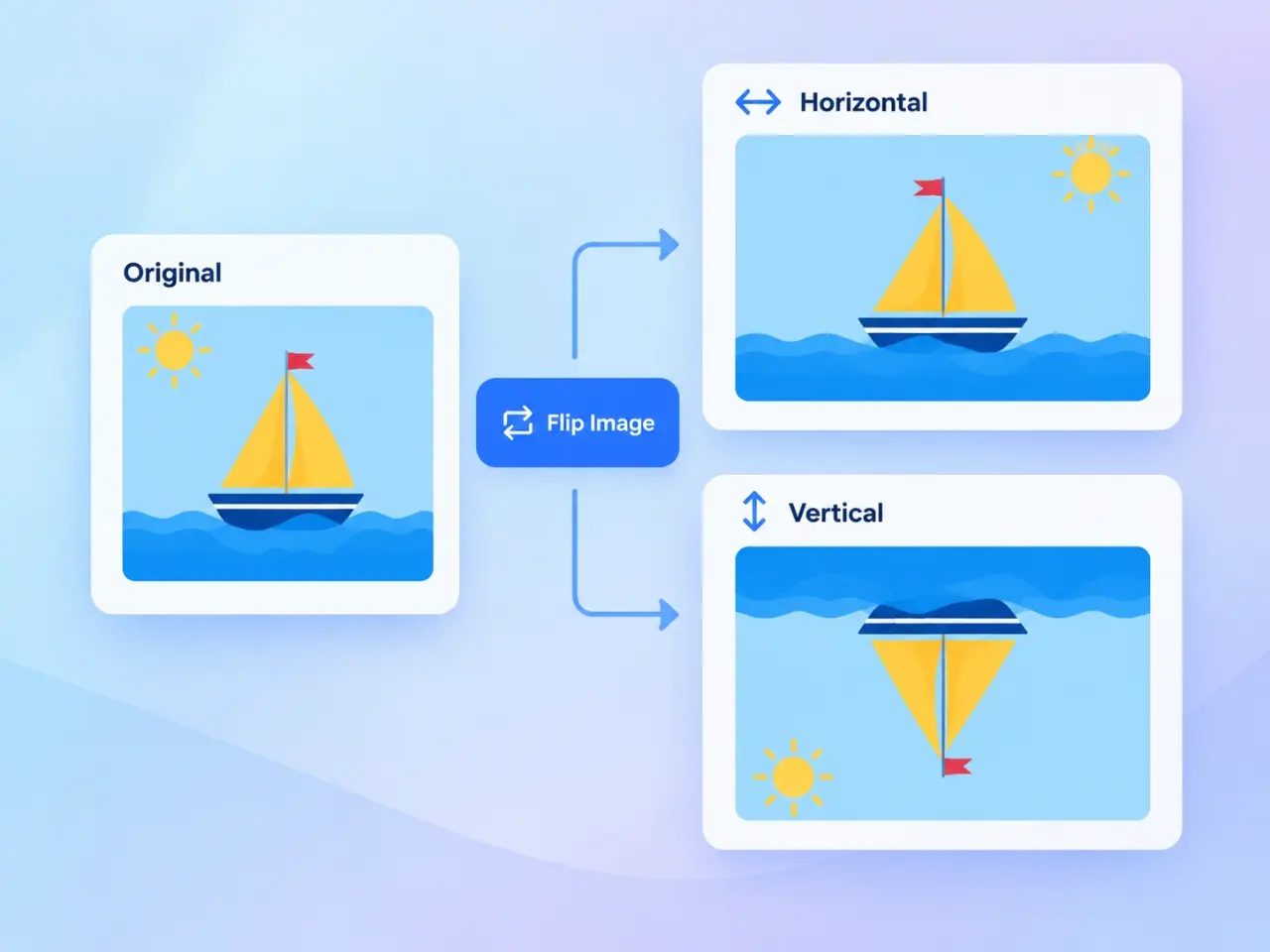
Flip Image is a free online mirror image tool that reverses a picture across a horizontal or vertical axis. A horizontal flip swaps the left and right sides, which is useful for correcting mirrored selfies, changing the direction a subject faces, or reversing artwork for transfer printing. A vertical flip swaps the top and bottom to create an upside-down reflection. You can turn either direction on or combine both, watch the image update in the live preview, and download a new file without changing the original on your device. Rotation controls are available in the same workspace when the picture also needs an orientation adjustment.
Drag and drop a picture, browse your device, or choose a sample image to start.
Select Horizontal to mirror left to right or Vertical to reverse the image from top to bottom.
Review the mirrored picture immediately, add rotation if needed, and choose an output format.
Create the full-size result, compare it with the live preview, and download the finished image.
Flip a front-camera photo horizontally when signs, clothing, labels, or other text appear backward. The live preview helps you confirm that readable details now face the intended direction before downloading.
Mirror a portrait, product, vehicle, arrow, or decorative element so it points into a layout instead of away from it. This can improve the visual flow of presentations, posts, banners, and page designs.
Create a horizontally reversed version of text or artwork when a transfer process requires a mirror image. Always follow the instructions for your paper, printer, and transfer method before producing the final item.
Use a vertical flip to reverse the top and bottom of a landscape, object, or graphic. The flipped result can serve as a starting point for water-reflection compositions, symmetrical layouts, or creative experiments.
Choose the axis that matches your task instead of relying on one generic mirror action. Turn on both directions when you need to reverse left and right as well as top and bottom.
See the picture change as soon as you select a flip direction or rotation angle. You can correct the settings before spending time creating and downloading the full-size result.
The selected image is processed locally in your browser and is not uploaded to an imglab server through this tool. Refreshing or closing the page clears the current workspace and generated result.
Save the flipped image as PNG, JPG, WebP, or AVIF. PNG preserves transparent areas, while quality settings help balance clarity and file size for compressed formats.
Use Horizontal Flip when you want a conventional mirror image that swaps left and right. This is usually the correct choice for reversed selfies, subjects facing the wrong way, and transfer artwork. Use Vertical Flip when the picture needs to be reversed from top to bottom. Pay close attention to text, logos, clocks, maps, road signs, and handed objects because a mirror operation changes their direction as well. If the picture is sideways rather than mirrored, use the 90-degree rotation controls instead. A flip by itself keeps the original pixel width and height, but combining it with a 90-degree or custom rotation can change the output dimensions. Compare the live preview with the generated result and keep the original file until you have checked the downloaded image in its final destination.
Upload the picture and select Horizontal under Flip Image. The live preview immediately swaps the left and right sides. Select Apply Flip when it looks correct, then download the full-size mirrored image.
A horizontal flip mirrors the picture left to right across a vertical axis. A vertical flip reverses the picture top to bottom across a horizontal axis. The best direction depends on which sides you need to exchange.
No. Flipping reflects an image across an axis, while rotation turns it around its center. Applying both horizontal and vertical flips produces the same orientation as a 180-degree rotation, but a single flip creates a mirrored result that rotation cannot produce.
A horizontal or vertical flip alone keeps the original pixel width and height. A 90-degree rotation exchanges the width and height, and a custom angle usually expands the canvas so the complete rotated picture remains visible.
Yes. Select one or both flip directions, then use the rotation controls in the same workspace. The live preview combines the selected changes before you create the downloadable result.
Transparent areas can remain transparent when you download as PNG, WebP, or AVIF. JPG does not support transparency, so transparent areas are filled with white when the result is saved as JPG.
No. This tool processes the selected image locally in your browser. The source and generated result are not uploaded to or stored on an imglab server through this workflow.
You can download the flipped result as PNG, JPG, WebP, or AVIF. Choose PNG when transparency matters, JPG for broad compatibility, or WebP and AVIF for modern compressed output.