Create Soft Backgrounds
Use Gaussian blur to soften a photo when you need a more relaxed backdrop for text, product cutouts, presentations, or social graphics.
Blur an image online with six adjustable effects, preview the result, and download it in your preferred format.
Explore more tools for your next task.
Resize images to exact pixel dimensions, a percentage, or common social media presets.
Crop photos with custom aspect ratios, freeform selection, and social media templates.
Invert image colors to create a negative effect while preserving the original dimensions.
Create original images from a written idea or transform a photo into a new visual.
Upload an image, describe the change you want, and create a new version to review.
Enlarge an image while improving visible detail for a clearer high-resolution result.
A blur image tool changes the appearance of a photo or graphic by softening details, adding texture, creating motion, or shifting colors. Use it when you want a gentler background, a stylized look, a mosaic-like pixel effect, or an eye-catching creative treatment. The imglab photo blur tool offers six adjustable effects and keeps the original image dimensions, so you can blur a picture online, review it beside the source, and download the version that fits your project.
Drag in an image, select one from your device, paste an image, or start with a sample photo.
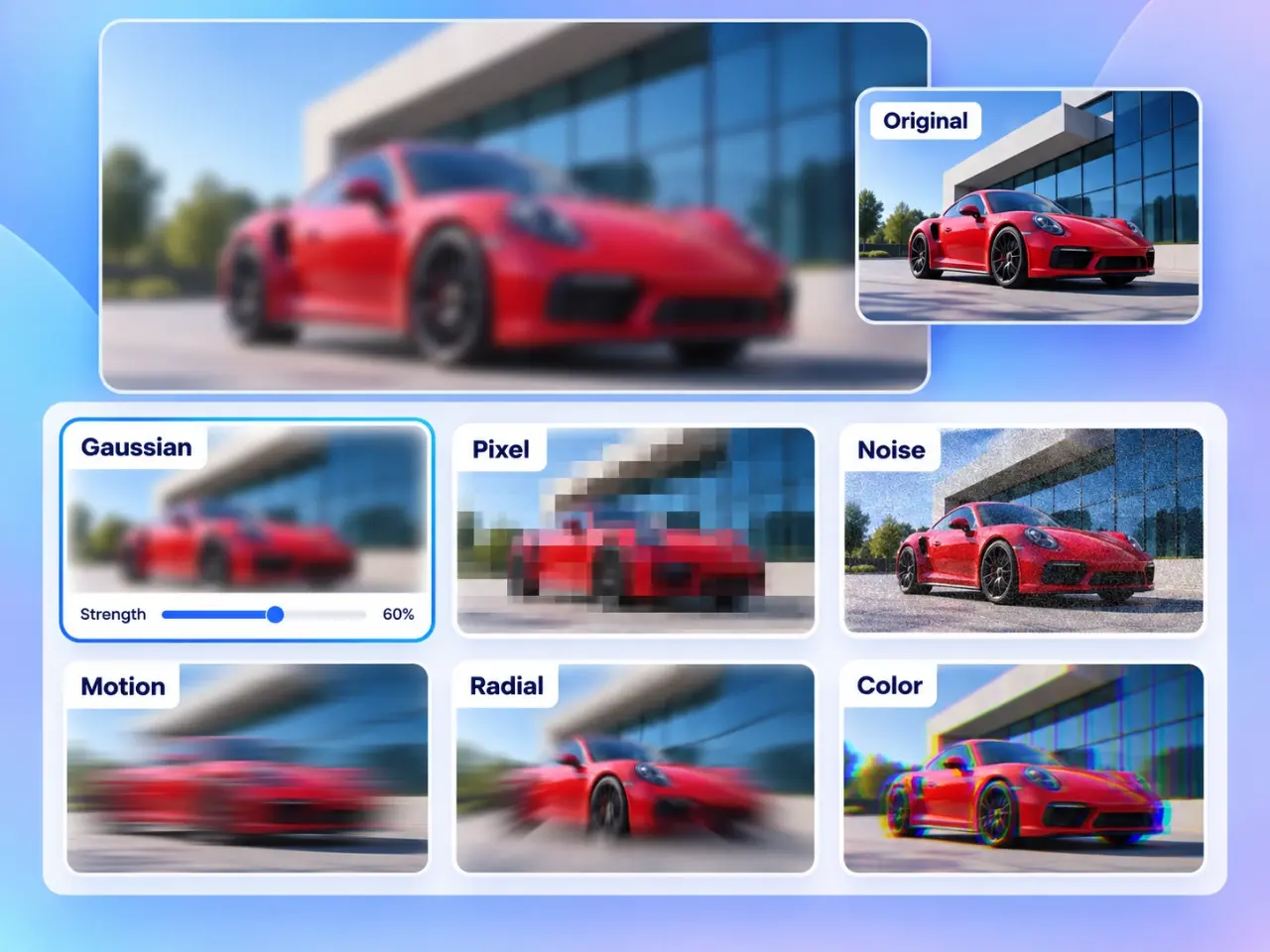
Pick Gaussian, Pixel, Noise, Motion, Radial, or Color depending on the look you want to create.
Move the strength control to make the effect more subtle or more pronounced before creating the result.
Apply the effect, compare the original and result, then download your blurred image in PNG, JPG, WebP, or AVIF.
Use Gaussian blur to soften a photo when you need a more relaxed backdrop for text, product cutouts, presentations, or social graphics.
Use the Pixel effect to simplify a photo into bold blocks. It is a quick way to create a retro-inspired look or reduce fine visual detail.
Use Noise to give a clean image a textured, grainy finish for posters, mood boards, album art, and other creative image treatments.
Use horizontal Motion blur to add a sense of speed to vehicles, action scenes, banners, and artwork without changing the image size.
Use Radial blur to keep attention near the center while adding motion toward the outside of the picture for energetic creative visuals.
Use the Color effect to offset RGB channels and make vibrant designs, digital-glitch inspired images, event artwork, and bold social posts.
Choose from six distinct blur and visual effects instead of settling for one generic photo blur, with one clear strength control for each mode.
Switch between the image you uploaded and the finished version in the same workspace, so you can inspect the difference before saving.
Your selected image is processed locally in your browser and is not uploaded to an imglab server through this standard tool.
Download the result as PNG, JPG, WebP, or AVIF. Choose PNG, WebP, or AVIF when you need to preserve transparent areas.
Start with a moderate strength and compare the result with the original before increasing it. Gaussian is a practical choice for a soft overall photo blur, while Pixel keeps its block-shaped character even at a lower value. Motion and Radial effects work best when the image has a clear subject or direction. Noise and Color are creative effects rather than ways to hide personal details. This tool applies an effect to the full image; crop an image first if you only want to change one part of it. Choose PNG for sharp text and transparent graphics, JPG for broad photo compatibility, and WebP or AVIF for efficient modern sharing.
Choose Gaussian for an evenly soft photo, Pixel for a mosaic look, Noise for grain, Motion for horizontal movement, Radial for center-to-edge movement, and Color for an RGB channel-shift effect. Try a sample image if you want to compare the modes quickly.
Yes. Each mode has its own strength control. Move it lower for a lighter effect or higher for a more visible change, then apply the effect again to update the preview.
This photo blur tool applies the selected effect to the complete image. If you need to change only one area, crop the image to that area first or use an editor with a targeted selection workflow.
No. The tool keeps the original width and height. It changes the image appearance only, so the result is ready to use in the same layout or upload field as the source photo.
No. The image you select and the generated result are processed locally in your browser. They are not uploaded to or stored on an imglab server through this workflow.
Download the blurred image as PNG, JPG, WebP, or AVIF. Use PNG, WebP, or AVIF for an image with transparency, since JPG replaces transparent areas with a solid background.