Meet File Limits for Online Forms
Resize an image to KB for applications, registrations, profiles, and document portals that reject files over a stated limit. Enter the same maximum size listed by the form instead of guessing at a quality setting.
Reduce an MB-sized image to a KB target, adjust its dimensions when needed, and download a smaller WebP, AVIF, or JPG file.
Explore more tools for your next task.
Resize images to exact pixel dimensions, a percentage, or common social media presets.
Batch convert JPG, PNG, WebP, AVIF, HEIC, and other images, with optional resizing.
Instantly isolate subjects and remove busy backgrounds with one-click precision.
Remove image backgrounds for free with unlimited use and local processing. No signup or watermarks.
Split images into equal rows and columns for social grids, carousels, puzzles, and more.
Reduce images to 50KB, 100KB, 200KB, 500KB, or a custom target size.
An Image MB to KB Converter reduces a large image file to a smaller size measured in kilobytes. It is useful when an upload form, portal, email, or website has a file-size limit and a photo from your phone is too large to submit. Choose the KB limit you need, then let the tool create a smaller version for download. You can reduce image size in KB with compression alone, or make a further size reduction by choosing smaller image dimensions. Your image is processed locally in your browser and is not sent to an imglab server.
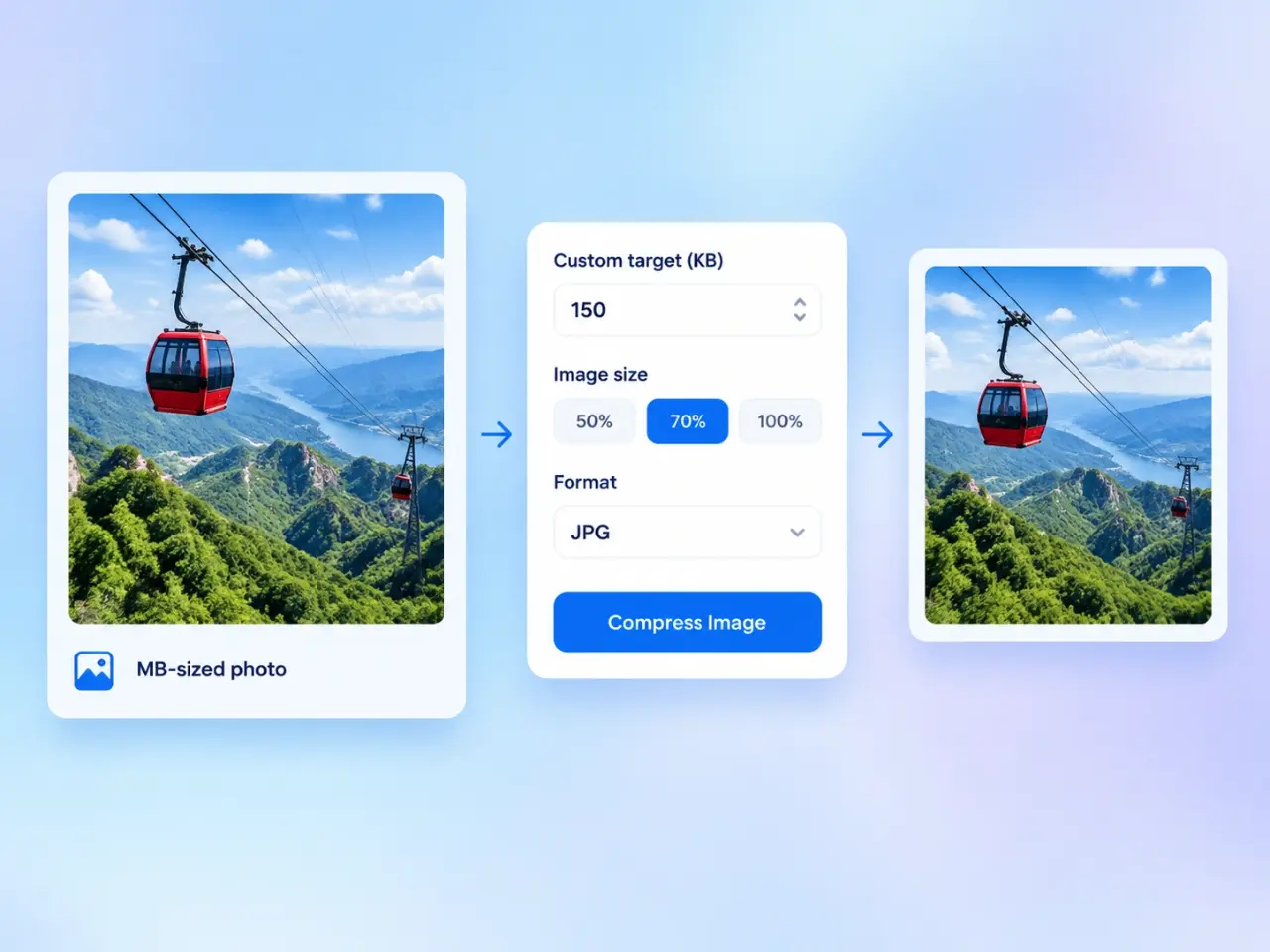
Choose a photo or graphic from your device, drag it into the upload area, or try a sample image. The original file size and pixel dimensions appear after the image is selected.
Select 50KB, 100KB, 200KB, 300KB, or 500KB when the destination gives you a limit. Use Custom for any whole-number target from 1KB to 10,000KB.
Keep the original dimensions, choose a smaller preset, or use the percentage slider. Reducing both width and height is useful when a very small KB target would otherwise make the image look too compressed.
Choose WebP, AVIF, or JPG, then compress the image. Review the preview and final file size before downloading the version that fits your requirement.
Resize an image to KB for applications, registrations, profiles, and document portals that reject files over a stated limit. Enter the same maximum size listed by the form instead of guessing at a quality setting.
Turn a large camera image into a lighter attachment that is easier to send and receive. A smaller file can also make sharing photos in chat apps more convenient on slower connections.
Use this picture size reducer to make product photos, article images, and simple graphics lighter before publishing. Select an efficient output format, then keep an eye on the preview to protect important visual detail.
When you need to minimize pic size for a quick share or a limited storage space, choose a practical KB target and download a separate smaller copy. Your original image remains unchanged on your device.
Set a KB target that matches the upload rule, including common limits such as 50KB, 100KB, 200KB, 300KB, and 500KB. A custom field is available when the requirement is different.
Compression reduces file weight, while the image-size controls let you shrink image dimensions when that is the better tradeoff. The displayed output dimensions make each choice clear before you compress.
Image processing happens locally in your browser. The selected photo is not uploaded to an imglab server, and refreshing or closing the page clears the working result.
View the compressed image, output format, file size, and selected dimensions before download. If the target cannot be met without a stronger tradeoff, the tool points you to a smaller image-size setting.
Start with the largest KB limit the destination allows, because every extra kilobyte can preserve more detail. For a tight limit, try WebP or AVIF first and inspect the result closely; JPG can be a practical choice when compatibility matters most. If compression alone does not reach the target, choose a smaller percentage under Image size. An image resolution decrease reduces both width and height, which can lower the file size more effectively than pushing quality too far. Review faces, fine text, gradients, and product details before downloading.
Yes. Upload the image, choose a file-size target in KB, and compress it. The result is a new downloadable file that aims to stay at or below your chosen limit, while your original file remains unchanged.
Choose the highest KB limit accepted by the destination and review the preview after compression. If the file still cannot meet a very small target at a practical quality, lower the Image size percentage gradually instead of forcing a much stronger quality reduction.
Yes. The Image size options resize the width and height together while preserving the image proportions. You can keep the original size, select a preset percentage, or choose Custom and set a value from 10% to 100%.
No. The image-size setting scales the full image proportionally, so it does not crop away any edge of the picture. The page shows the resulting pixel dimensions next to the Image size label.
WebP and AVIF are efficient choices for modern websites and supported apps. Choose JPG when the image needs broader compatibility. If the original includes transparency, JPG uses a white background in the result.
No. The standard MB to KB Image Compressor processes your selected image locally in the browser and does not send it to an imglab server. Refreshing or closing the page clears the current working result.