Create a Negative Image
Turn a regular photo into a digital negative for posters, album artwork, social graphics, or experimental photography without opening a full image editor.
Invert image colors online to create a negative image, compare the result, and download it in your preferred format.
Explore more tools for your next task.
Create original images from a written idea or transform a photo into a new visual.
Create a video from a written idea, an image, or a reference video.
Upload an image, describe the change you want, and create a new version to review.
Enlarge an image while improving visible detail for a clearer high-resolution result.
Apply Gaussian, pixel, noise, motion, radial, or RGB color blur effects to an image.

Shift image hue and adjust brightness, contrast, saturation, and color temperature with live preview.
A Color Inverter changes every visible color in an image to its opposite, creating the familiar look of a photographic negative. Bright areas become dark, dark areas become bright, and colors shift across the color spectrum. This can reveal details that are difficult to notice in the original, create a striking visual effect, or prepare a negative image for a creative project. The imglab image color inverter keeps the original pixel dimensions and lets you compare the source with the finished result before downloading it.
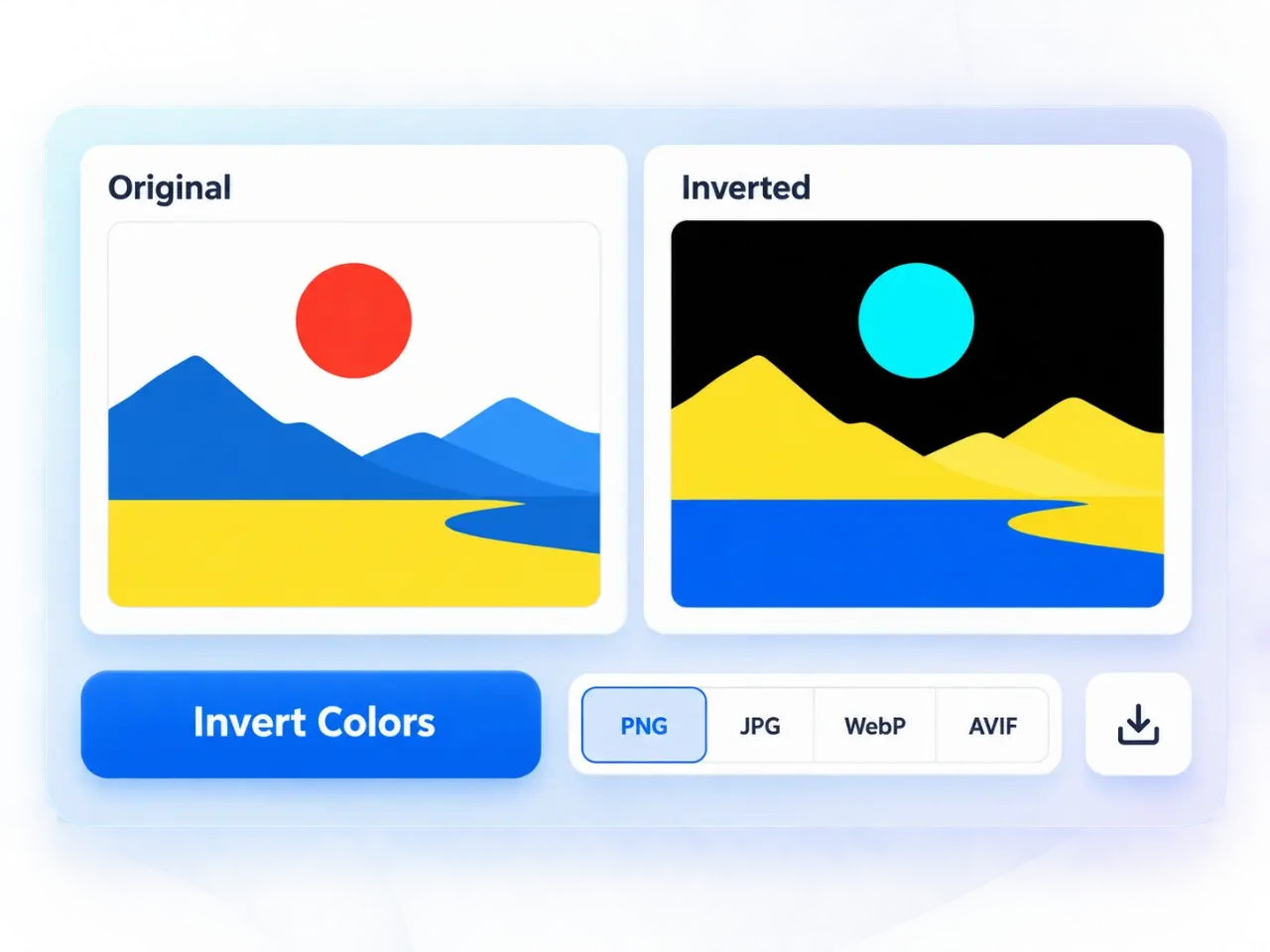
Drag and drop a picture, browse your device, or choose a sample image to begin.
Select PNG, JPG, WebP, or AVIF and set the quality when the chosen format supports it.
Choose Invert Colors to apply a full negative filter without changing the image dimensions.
Switch between the original and result, then download the inverted image to your device.
Turn a regular photo into a digital negative for posters, album artwork, social graphics, or experimental photography without opening a full image editor.
Invert colors on an image to examine highlights, shadows, edges, and small visual differences from a fresh perspective when reviewing artwork or screenshots.
Create an opposite-color version of icons, textures, patterns, and illustrations for mockups or visual exploration. Review the result before deciding whether it suits your design.
Use the negative filter as a finished effect or as a starting point for collages, mixed-media work, educational demonstrations, and other creative image projects.
Switch between both views in the same workspace so you can inspect exactly how the inverted colors change the image before saving it.
The negative image keeps the width and height of the source, so the color effect does not resize or crop your picture.
The image you select is processed locally in your browser and is not uploaded to an imglab server through this tool.
Download the result as PNG, JPG, WebP, or AVIF. Transparent areas remain transparent when you use an output format that supports transparency.
Try the effect on images with clear differences between light and dark areas, bold colors, or strong shapes. A negative filter can make subtle marks easier to notice, but it does not restore missing detail or improve image resolution. Choose PNG when you need transparency or crisp graphic edges, JPG for broad compatibility with photographs, and WebP when you want a modern format that can balance quality and file size. Always compare the original and result before downloading.
Each visible color is replaced by its opposite value. Black becomes white, white becomes black, and other colors shift to their complementary negative appearance. The image dimensions do not change.
No. A negative image reverses its color values, while grayscale removes color and represents the picture with shades of gray. A color negative can still contain many colors.
Yes. Visible pixels are inverted while transparent areas remain transparent. Choose PNG, WebP, or AVIF for the output if you need to keep transparency; JPG does not retain transparent areas.
No. This Color Inverter processes the selected image locally in your browser. The image and generated result are not uploaded to or stored on an imglab server through this workflow.
imglab does not set a fixed upload limit for this local tool, but very large or complex images may exceed your browser or device memory. If processing fails, try a smaller source image or another device.